*HR: Sending Invitation Email to New Staff
OVERVIEW:
Sending a login email to staff allows you to give staff access to Scaflog and them to create their Scaflog user account
ACTION STEPS:
Firstly enter the new staff member into Scaflog:
- HR Menu, Staff List (Active Only) then click on the green PLUS sign in the top right corner to add a new Staff Member.
- At the very least please add their full name, a short code for them, their status (usually Employed or Contractor), any staff roles if required.
- WORK EMAIL must be filled in for them to gain access to Scaflog. If they don't have a work email and are using their personal email use that in this field. NB. If they do not want to use their own personal email you can create a 100email.co inbox and email for them to use. See related article for this.
- Fill in the Main Service Location (normally your office/main yard) and any add on locations under that if necessary (this is for other "branches").
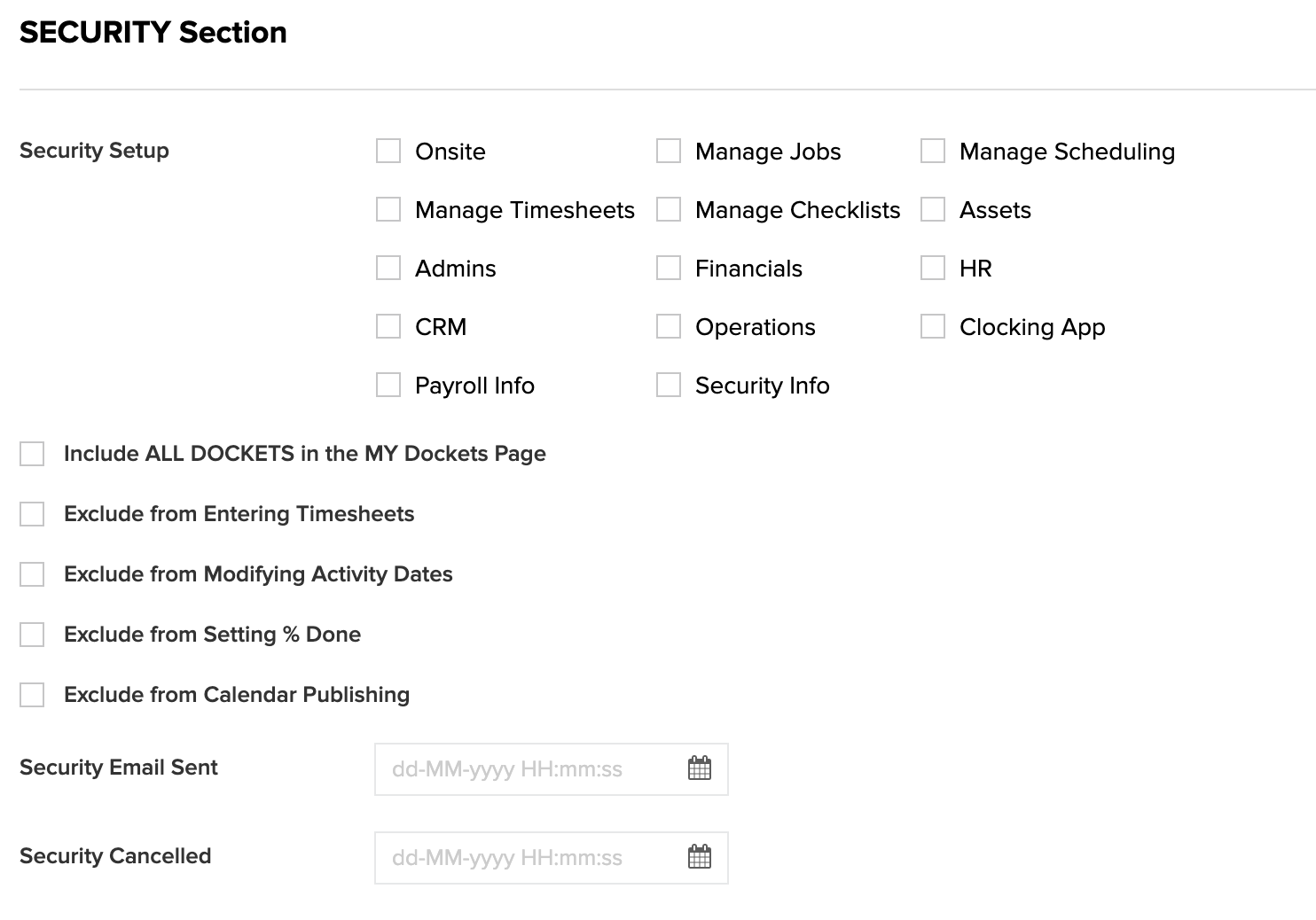
- (Mandatory) Scroll down to the Security Section and tick what menus they need to have access to and what MY Dockets options they require. (See the SCREENSHOT below for a picture of the tick boxes)
- Click submit to save.
- Right Click and choose SET SECURITIES to send the invitation email (DO NOT MISS THIS STEP)
NOTE: This will come from noreply@100rails.com so it may go to their SPAM/JUNK folder.
SCREENSHOTS:
1. Setting up the Security options...see related article How to Set Securities