*HR: How to set securities for staff and what they mean
Security Section
This is a VERY IMPORTANT SECTION as this is where you are allowing your employee access to the different modules throughout Scaflog.
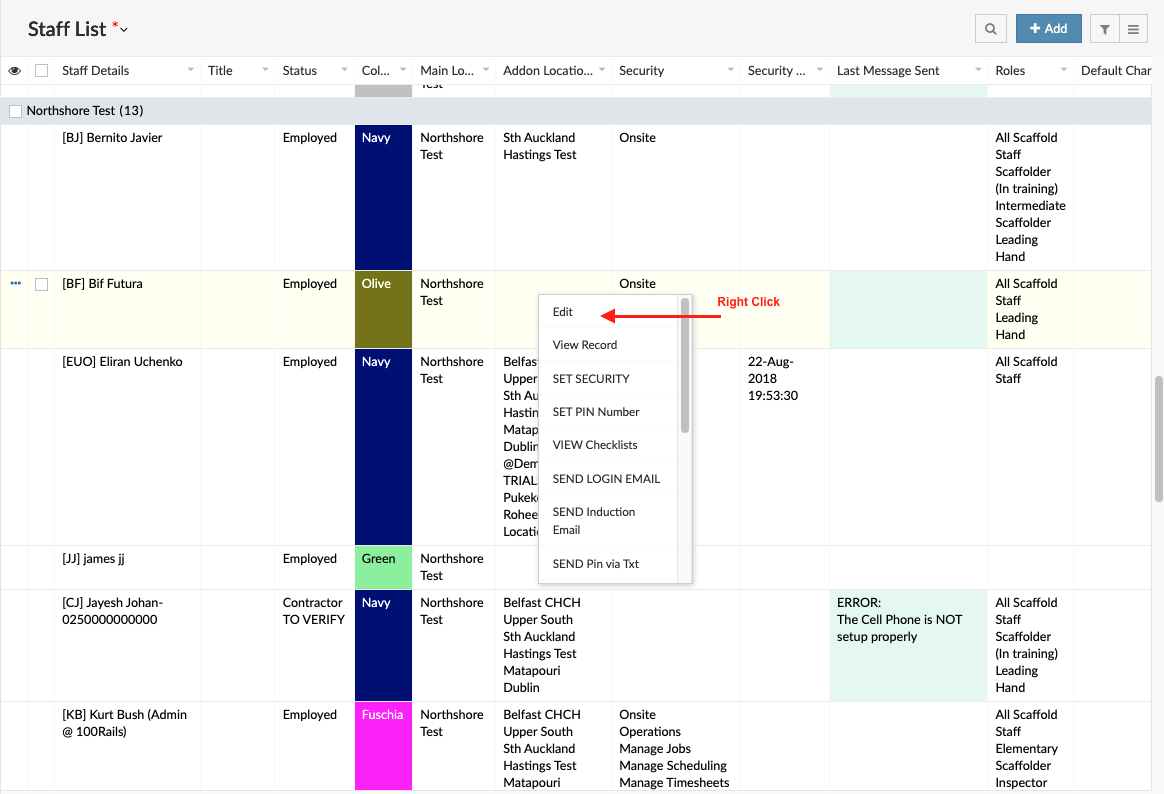
- Go into your Staff List (Active Only) via HR Menu
- Right click anywhere on the person you want to set securities for and click Edit
- Choose the security required, then scroll down to the bottom and click submit (see below for details on what all the securities are)
- Once you have chosen the security and updated, go back to that person on the list and right click and choose SET SECURITY. This step is important so it gives them the latest access given.
See below for explanations on each security setting
- Clocking App - Allows user to clock in and out with a pin number (On the APP or desktop)
- Onsite - Allows user to use the Onsite Menu (My Dockets etc using the APP or desktop)
- Operations - Allows user to dashboard and performance reports - and using the APP access to Jobs Menu, schedule etc
- Manage Jobs - Allows user to access. add & modify all quotes and jobs
- Manage Scheduling - Allows user to change and manage schedule USING WEB BROWSER ONLY selecting Operations will allow this for the APP
- Manage Timesheets - Allows user to access, add & modify timesheets (and view pay rates if using the payroll module)
- Manage Checklists - Allows user to access, add & modify checklists
- Manage Clocking - Allows user to access and modify clocking
- HR - Allows user access and modify the HR Menu, staff lists and training courses
- CRM - Allows user to access, modify & add clients and contacts
- Assets - Allows user to access, add & modify assets in the Asset Menu
- Admins - Allows user to update all aspects of company data (this is an advanced area and should only be given to very few staff)
- Financials - Allows user to access the Invoicing Menu
- Payroll Info - Allows user to see the payroll information section within a staff members profile
- Reporting - Allows user to access Reporting Menu
- Security Info - Allows user to give staff members access to Scaflog (if this is not ticked for someone they wont see the security section for staff members)
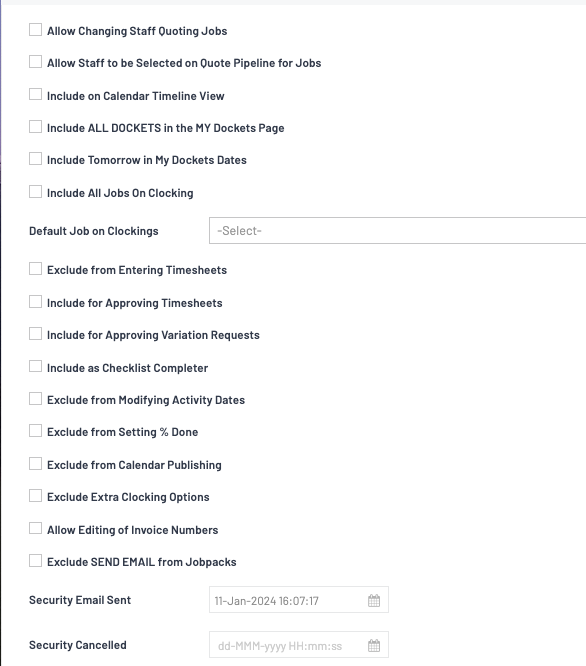
The following are useful for Office Staff or Team Leaders to have or not have
- Allow Changing Staff Quoting Jobs - (ADVANCED: contact support@100rails.com)
- Allow Staff to be Selected on Quote Pipeline for Jobs - (ADVANCED: contact support@100rails.com)
- Include ALL DOCKETS in the MY Dockets Page - This allows the user to see every docket in the My Dockets Page using the APP
- Include All Jobs On Clocking - This will show all active jobs when a person is clocking in and out on jobs
- Default Job on Clockings - Enter your default job set up for clocking - normally for yards etc
- Exclude from Entering Timesheets - Cannot enter timesheets
- Include for Approving Timesheets - Team Leader can approve timesheets - Your company needs to be set up for this action
- Include for Approving Variation Requests - Team Leader can approve variation requests - Your company needs to be set up for this action
- Include as Checklist Completer - Ticking this will allow the user to complete inspections using the My Checklists in the Onsite Menu using the APP - Your company needs to be set up for this action
- Exclude from Modifying Activity Dates - Cannot modify date using My Dockets
- Exclude from Setting % Done - Cannot set % done using My Dockets
- Exclude from Calendar Publishing - Removes this person from the publish Calendar feature
- Exclude Extra Clocking Options - No extra clocking option, the user will only see Clock IN/OUT option
- Allow Editing of Invoice Numbers - Advanced and should only be for the person creating invoices and who does the invoicing
- Exclude SEND EMAIL from Jobpack - Excludes this option from the job pack
- Security email sent/Cancelled - Shows dates of when this was actioned