*HR: First time Login to Scaflog
This document is for people with HR Menu access only
How to set up staff to login into Scaflog for the first time using their own email:
Firstly enter the new staff member into Scaflog:
- HR Menu, Staff List (Active Only) then click on the green PLUS sign in the top right corner to add a new Staff Member.
- At the very least please add their full name, a short code for them, their status (usually Employed or Contractor) and any staff roles if required.
- WORK EMAIL must be filled in for them to gain access to Scaflog. If they don't have a work email and are using their personal email also put that in this field. NB If they do not wish to use their personal email and they dont need to receive emails from Scaflog then tick the box that says "Use Internal Email (ie {first}.{last}@100email.co)" To create this 100email inbox see related article called "100email account set up"
- Fill in the Main Service Location (normally your office/main yard) and any add on locations if necessary (this is for other "branches").
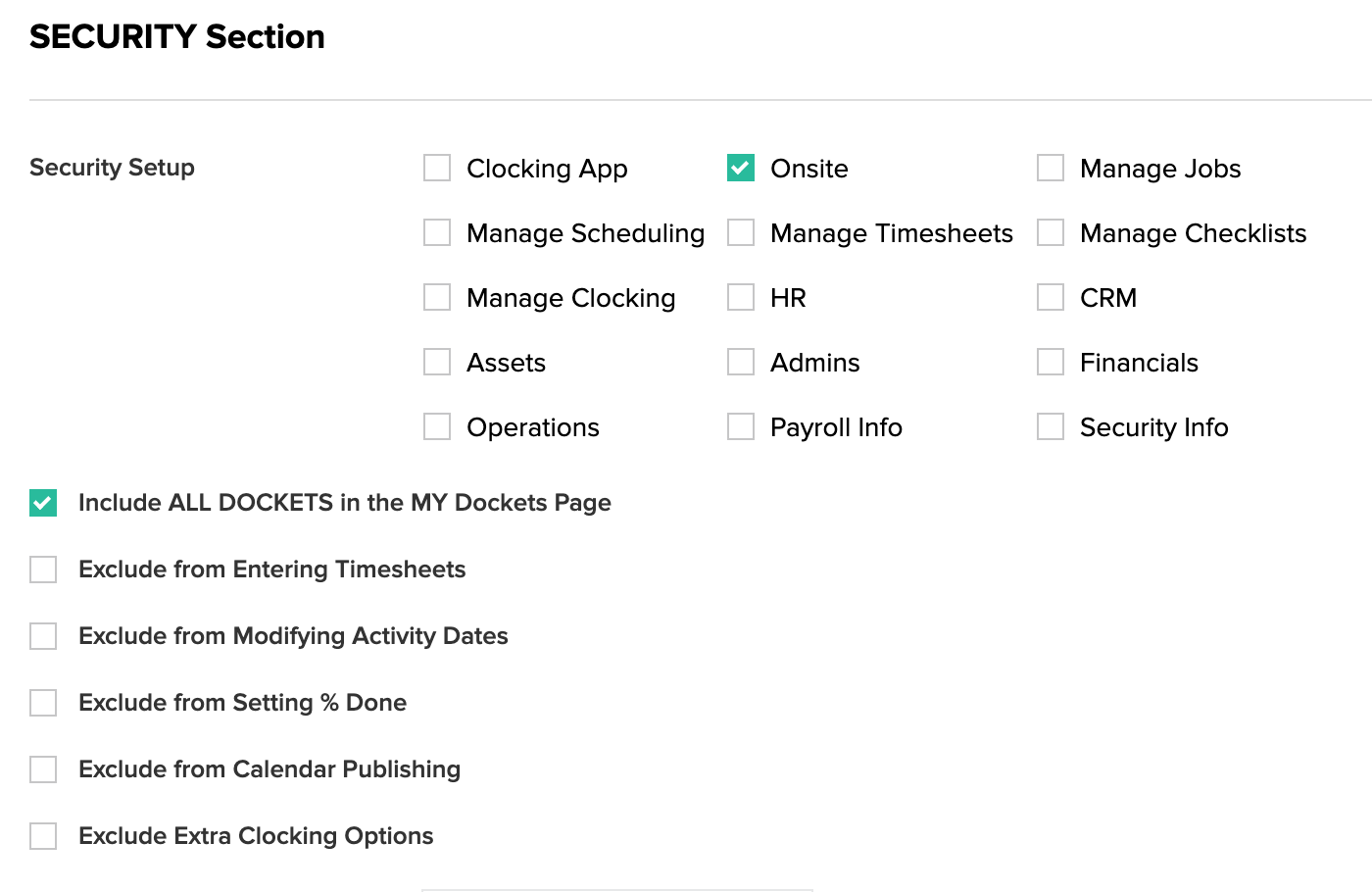
- (Mandatory) Scroll down to the Security Section and tick what menus they need to have access to.
-
After all other details are entered (this can be done later by editing), scroll down to the bottom. If they are a leading hand or need to see ALL DOCKETS on the onsite menu, tick the VIEW ALL DOCKETS box.
- Click submit to save.
- Create the 100email inbox NOW if they are not using a company email or a personal email. Use help doc called "100email account set up". IGNORE THIS STEP IF USING A WORK EMAIL OR PERSONAL EMAIL
- YOU MUST DO THIS STEP Right click on this employee and choose SET SECURITY from the menu. Without this step it wont allow them access to Scaflog OR send them the invitation to access Scaflog
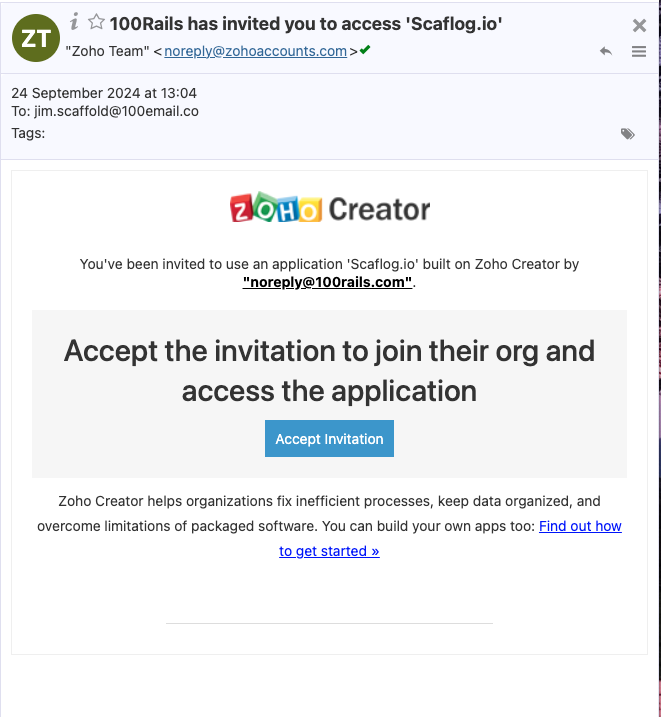
NOTE: This will come from noreply@zohoaccounts.com so it may go to their SPAM/JUNK folder.
Your first log on setup MUST be on a desktop computer or laptop
These next steps to be done by your staff member
Open the email from The Zoho Team and click on the blue "Accept Invitation" button to accept.
NOTE: If you are using someone else's computer who already uses Scaflog, right-click and open the Accept Invitation button in an "incognito window" for Chrome browser or "secret window" for MS Edge browser, then Accept Invitation
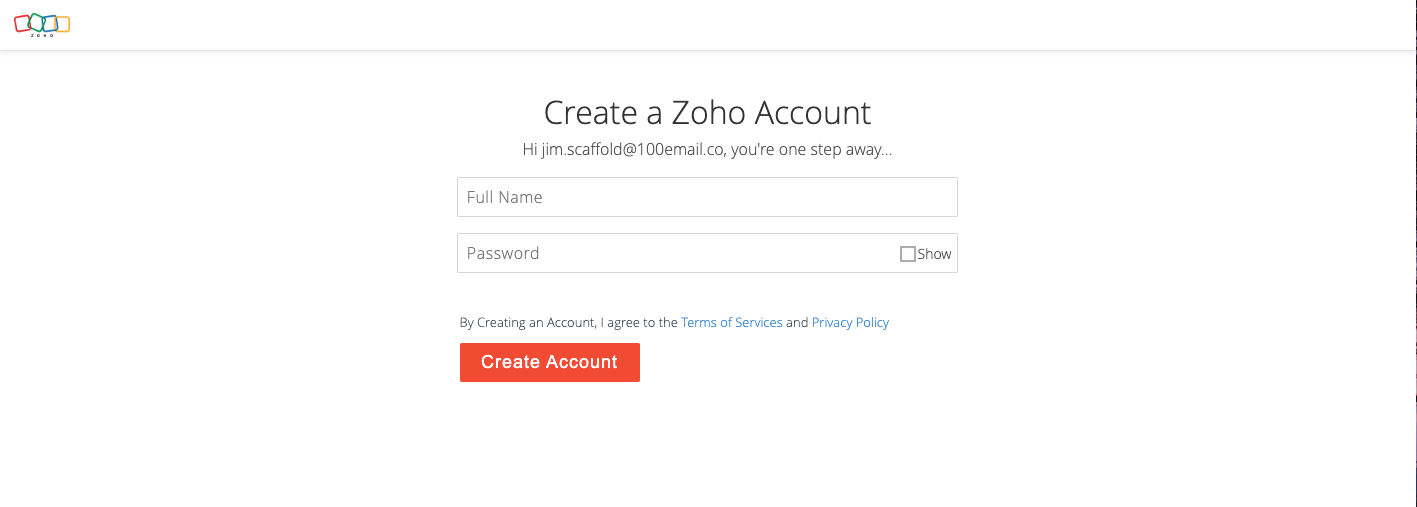
This will take you to Create a Zoho Account page
- Enter your full name
- Choose a password
- Click the Red Create Account button
Once into Scaflog, bookmark the page for easier access next time.
Downloading & Logging into the APP for the first time:
ON MOBILE DEVICE
- From the App Store or Play Store find and download the Zoho Creator App
- Once downloaded open the app
- It will ask you to sign in, so enter your email and password to sign in
- My Apps screen - There will be a RED Scaflog.io Icon - Open this.
- You're IN!