Right Click for Activities Schedule at Calendar ALL
OVERVIEW:
The right-click has a multitude of options inside, JOBS - All Quotes/Jobs
This is a very useful tool when needing to view information about the job you are looking at
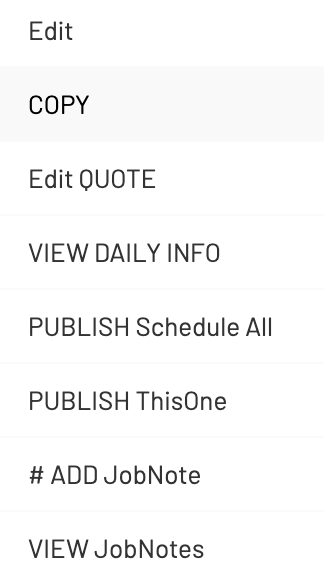
Edit: The main details of the Activity. Select a Work Type first when creating or reviewing the Activity on the calendar.
COPY: Makes a copy of the Activity selected also gives. You can then Edit and change the Work type. ie from Erect to Delivery etc
EDIT QUOTE: Adding all financials and charge information to quote or job attached to this Activity.
VIEW DAILY INFO: Shows key stats for the day you are clicked on.
PUBLISH Schedule ALL: Brings up a form that you can adjust and select which staff get the notifications via SMS or EMAIL.
PUBLISH ThisOne: Sends Notifications WITHOUT confirming if the selection for the date is correct.
#ADD JobNote: Add a quick financial or operational note to the job for this activity. If you want to add a NOTE to the activity you can edit this activity and enter them into the Internal Notes section.
VIEW JobNotes: Shows the relevant notes for Job.
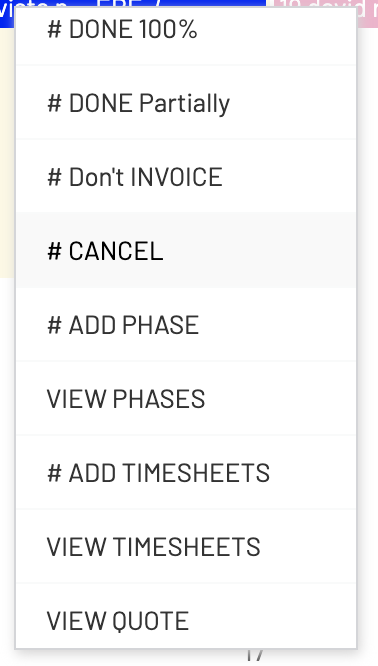
DONE 100%: Set the activity to completely done.
DONE Partially: Set a partial percent done and a reason.
Don't Invoice: Do not invoice this activity as not required.
CANCEL: Set a cancel status on this activity. Mainly for reporting.
#ADD PHASE: Add a Phase to the job related to this activity.
VIEW PHASES: View all the phases for this Job
#ADD TIMESHEETS: Add a quick timesheet to this activity. Normally Admin would do this if required from the Payroll section but it can be added here as well to save clicks.
VIEW TIMESHEETS - Any and all timesheets to this job
VIEW QUOTE: Print Quote to PDF version
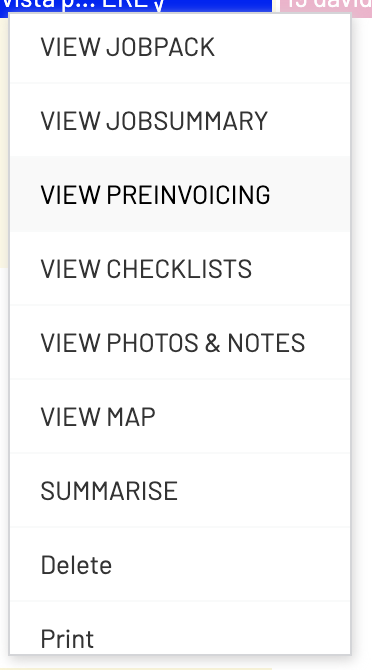
VIEW JOBPACK: You can view the job pack for this job with critical ON SITE details. No financials are on this report.
VIEW JOB SUMMARY - A Profit and Loss report for this job alone.
VIEW PREINVOICING - This will display pre-invoicing in its entirety for the whole job, separated into specific phases. Normal pre-invoicing only goes back about 90 days.
VIEW CHECKLISTS - All checklist associated with this job
VIEW PHASES - Shows phases specific to the job and status, etc
VIEW PHOTOS & NOTES - Any and all photos and documents (ie PDF) added to this job
VIEW MAP - Shows google map of the site
VIEW Audit - Shows audit trail of stage changes
SUMMARISE - Re calculate the totals and status for the activity.