How to change Phase Status
OVERVIEW:
This document explains the two ways you can change the Status of a Phase. You may need to do this if your job is showing that it is on hold instead of being completed because there is a phase that is unused/not required in the quote.
HOW TO:
First way is by accessing the phase inside the quote:
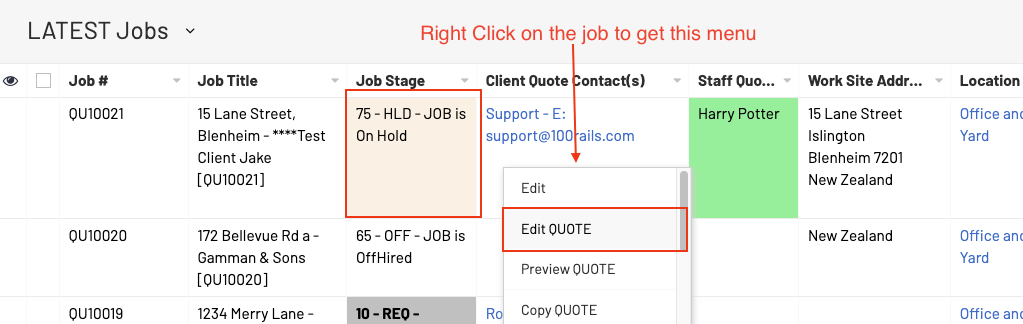
Be in the Latest Jobs Screen
Right click on the job - Choose Edit Quote - this will open in another tab
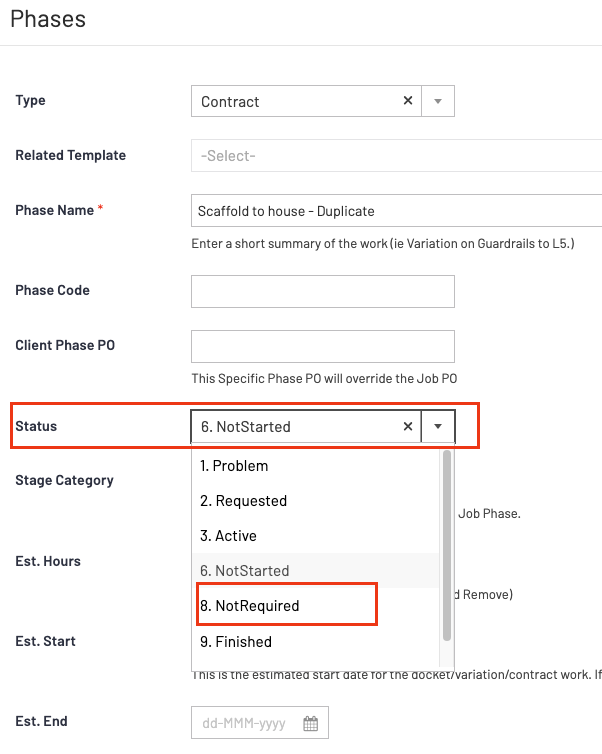
Edit the phase that is not required by clicking on the little green pencil

Change the Phase status to Not Required and Update, Make sure yu do this to all unwanted/not required phases
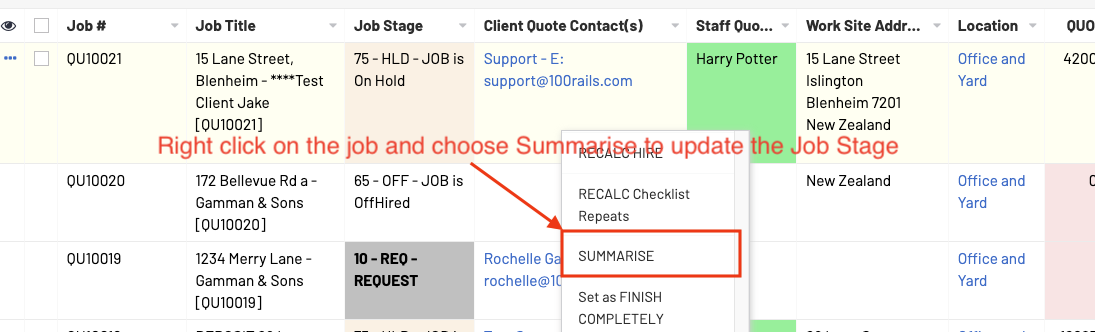
Back in the Latests Jobs screen right click on the job and choose summarise to update the Job Stage
Now your job should show the correct jobs stage as a completed job
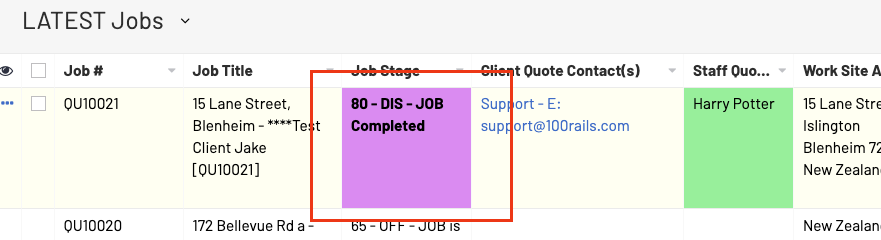
Once this is done the job will not go back to "on hold".
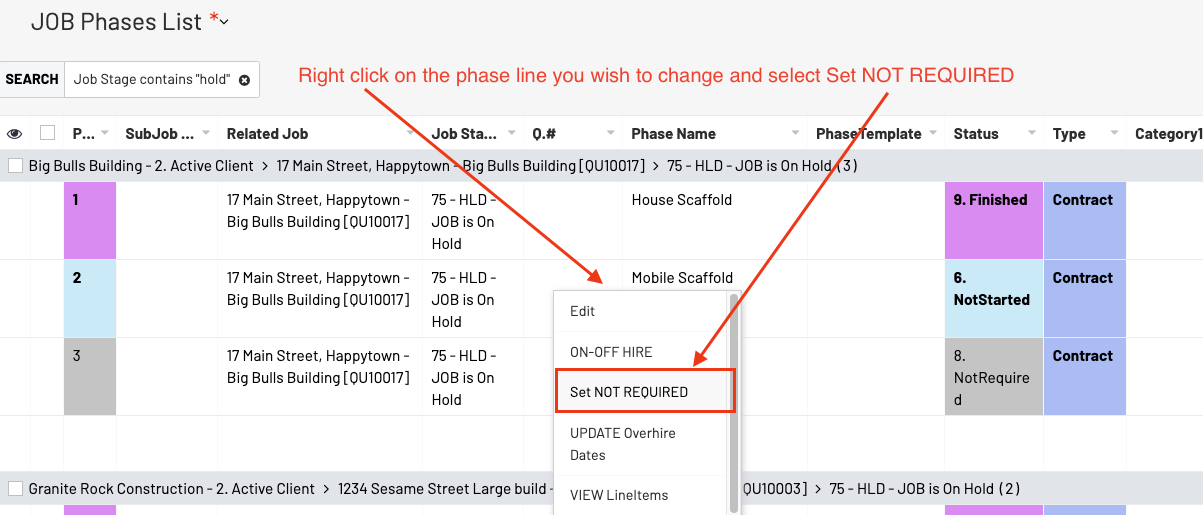
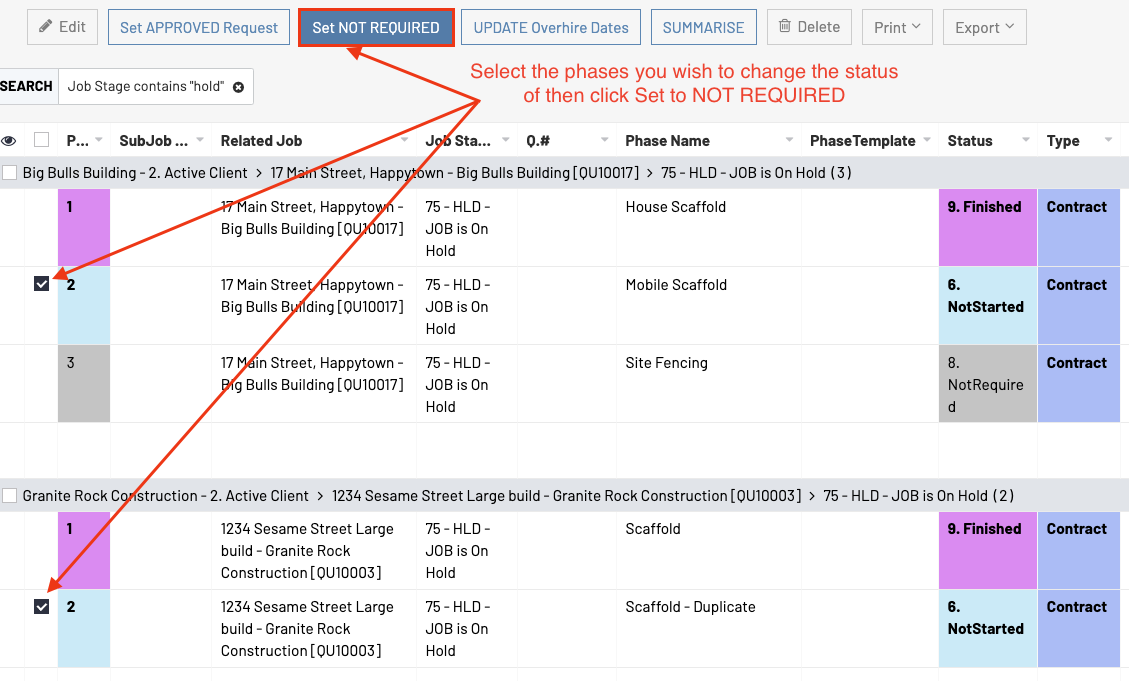
The second way to do this is by accessing the phase through the Jobs Phase List. This is good for bulk editing.
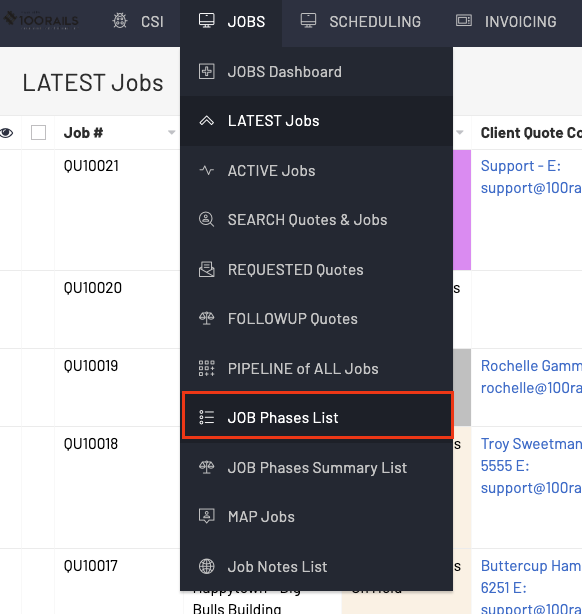
The you click on the Job Stage column header and click search, as you only want to see jobs that are on hold
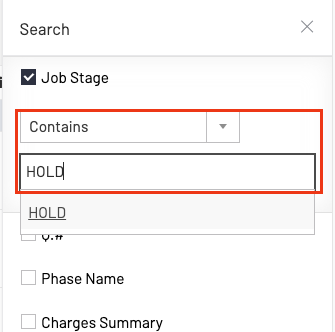
Type in the search box "hold" and click search.
You will now only see the jobs that are "on hold" due to phases not being used in the quote.
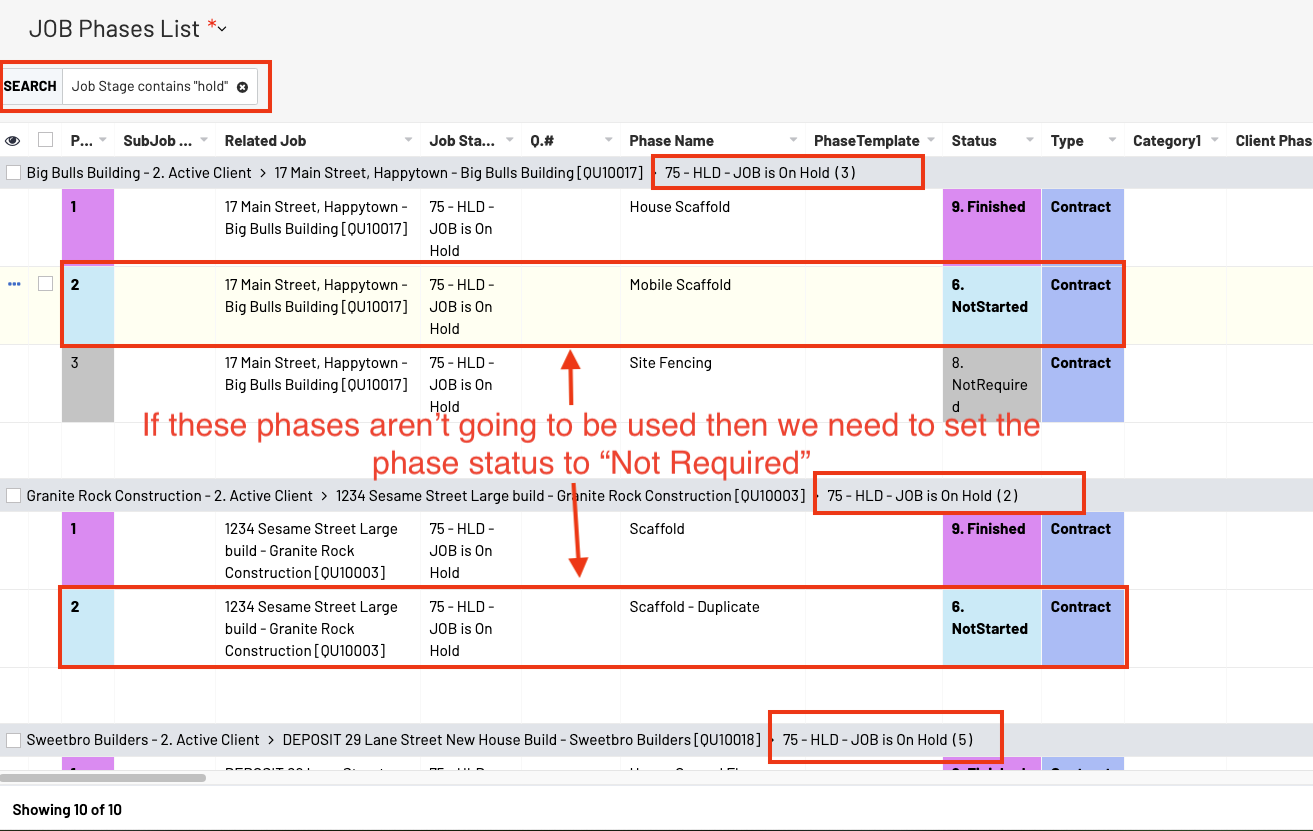
To bulk edit you can tick the phases in the jobs phase list that you want the staus to change and click the "Set to NOT REQUIRED" button.
OR.....if you want to them one by one you an do this on the right click menu