Admin Assist: MS Teams Setting up on iPhones and Adjusting FOCUS
Below is a series of screenshots of the settings that you should have on your iPhone for MS TEAMS.
MS TEAMS SETTINGS
- Icon to Select: Go to the SETTINGS icon on your phone

- Select MS Teams: Scroll down to the Apps sections and Select MS Teams

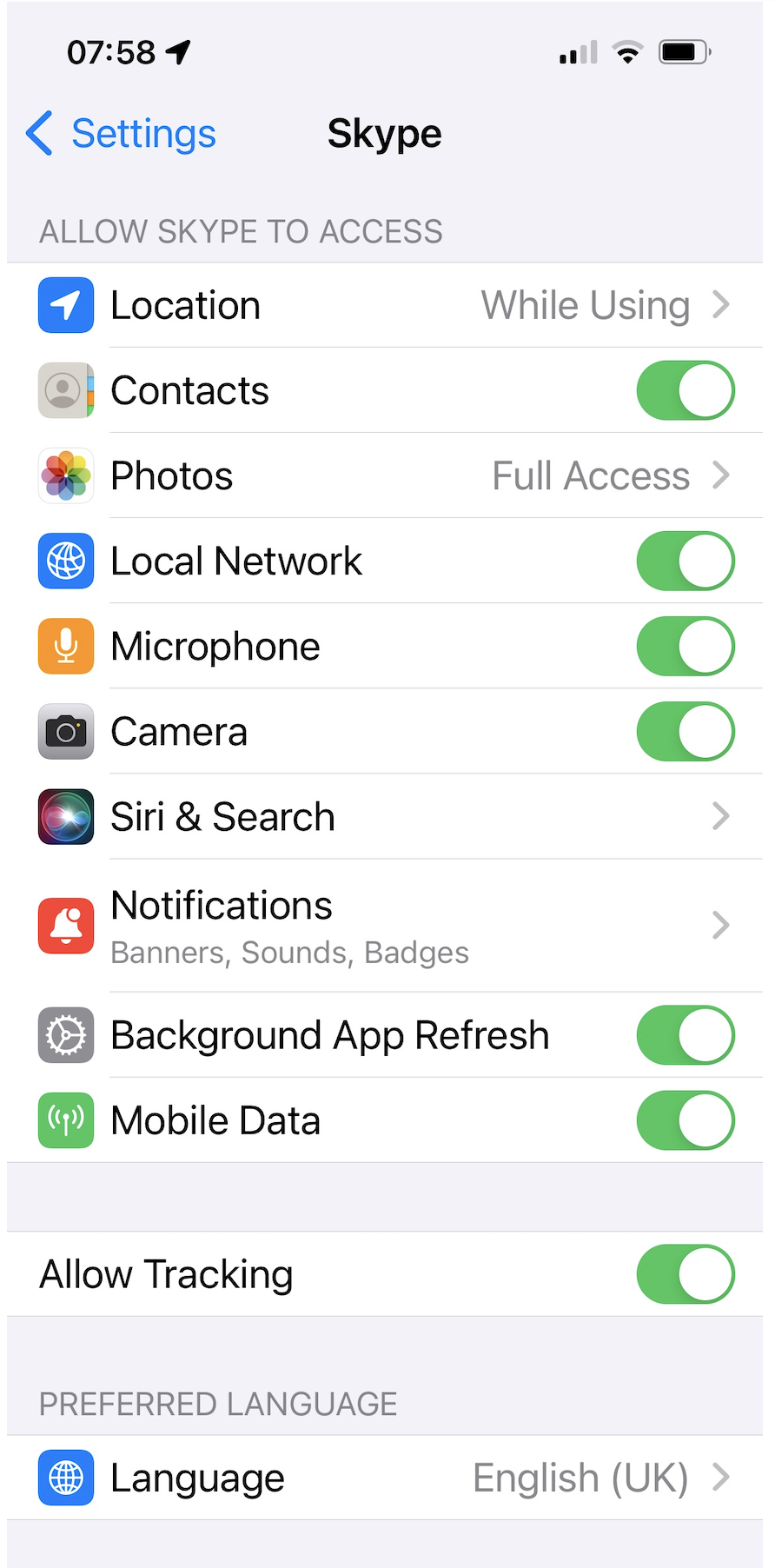
- MS Teams Settings: Match the switches configured in the screenshot below
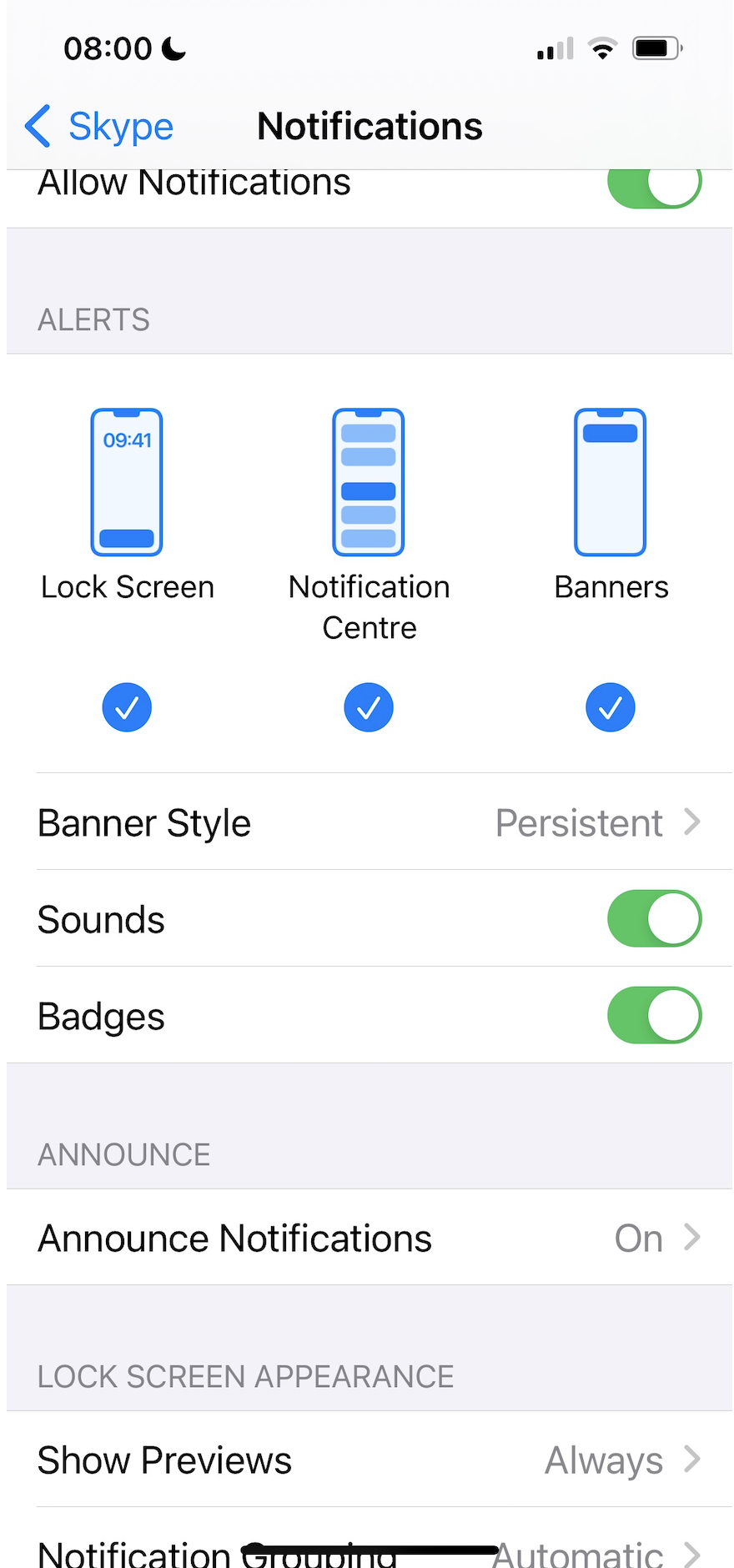
- Notifications: Set the Notifications as below
FOCUS SETTINGS:
Often notifications from MS Teams are affected by FOCUS settings on your iphone.
Whatever focus you have your phone on will need to have MS Teams notifications allowed so the messages get through.
Below are a series of screenshots that show you where to look for your FOCUS settings
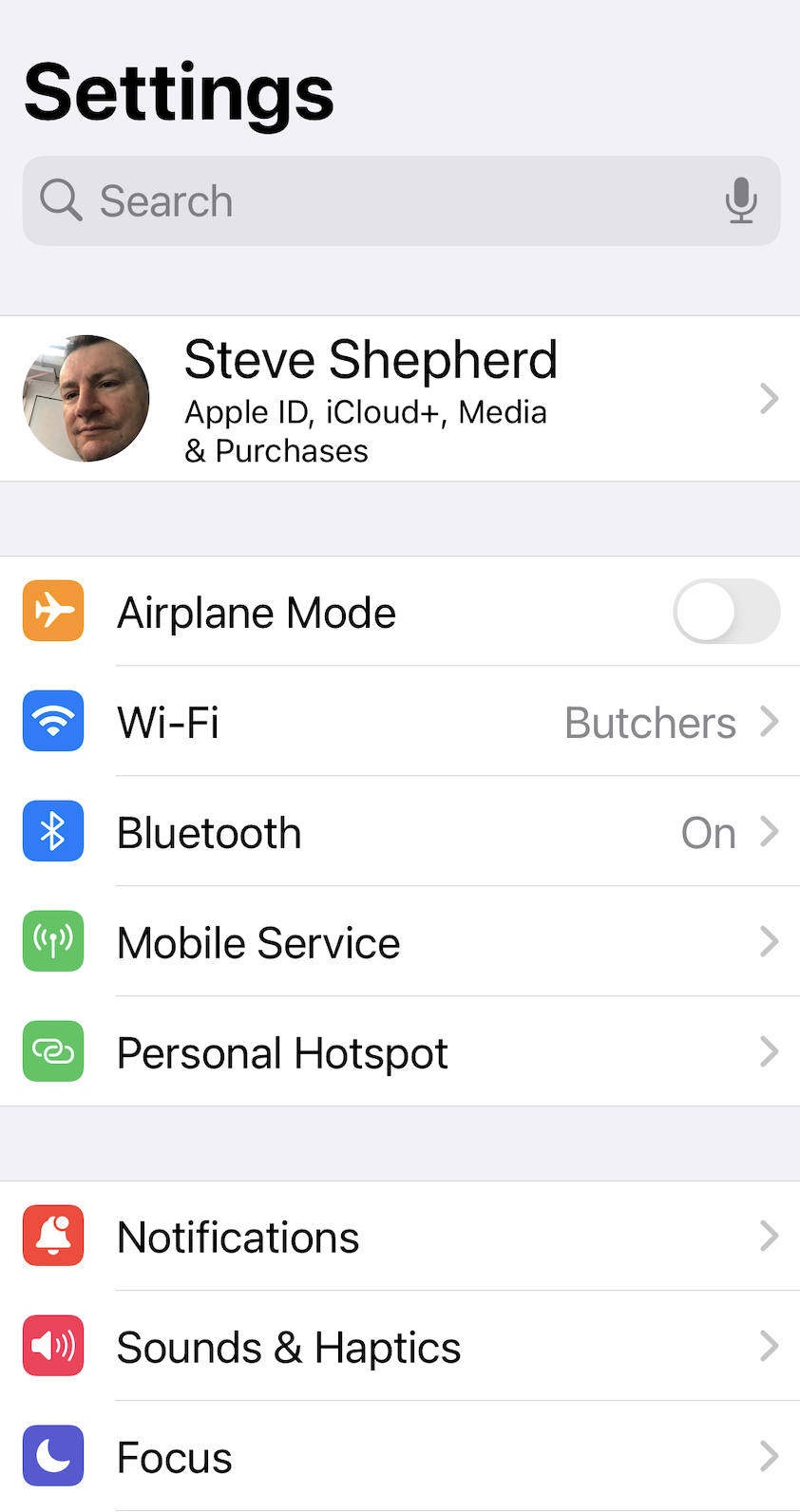
- Icon to Select: Go to the SETTINGS icon on your phone
- Select FOCUS: go to the Focus option at the bottom of this screenshot.
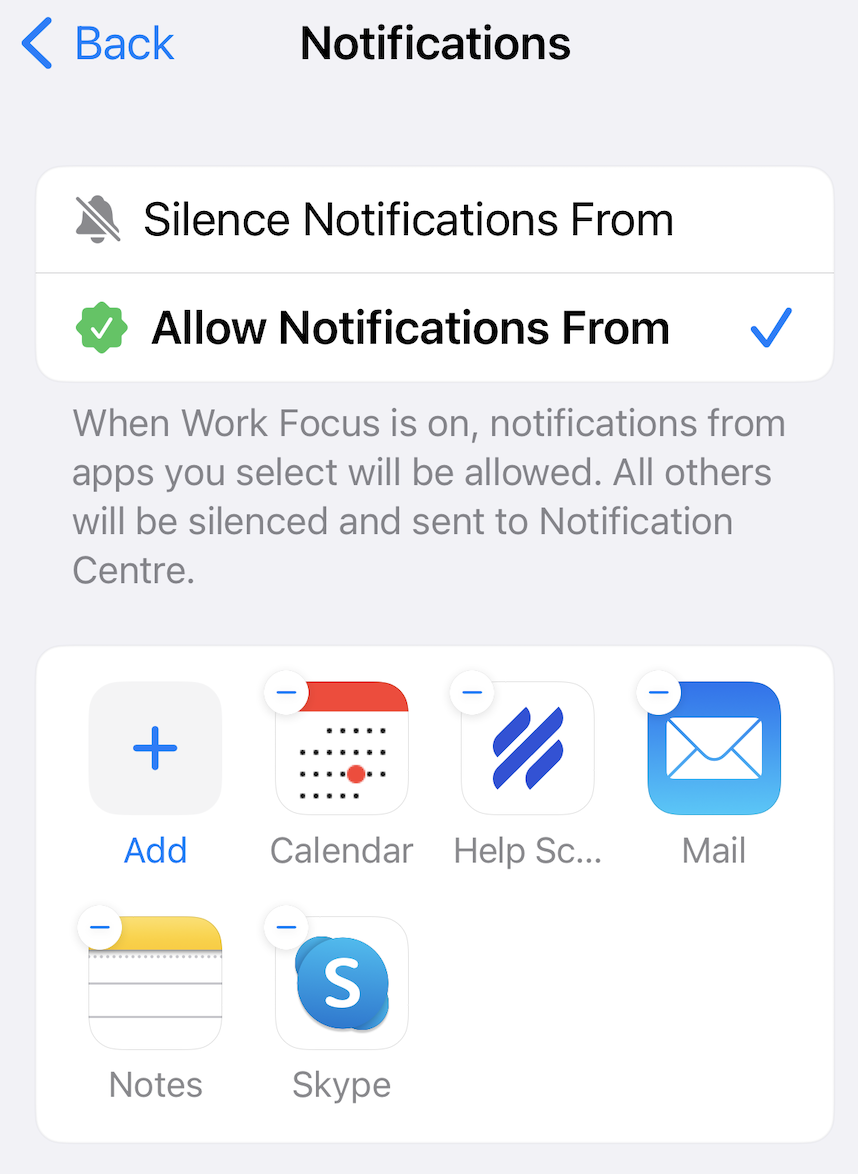
- FOCUS Profile: Move through each FOCUS profile and check that the MS Teams App is ALLOWED to send notifications while in this focus mode profile. The profile selected below is the "WORK" focus profile but all the profiles need to be checked.

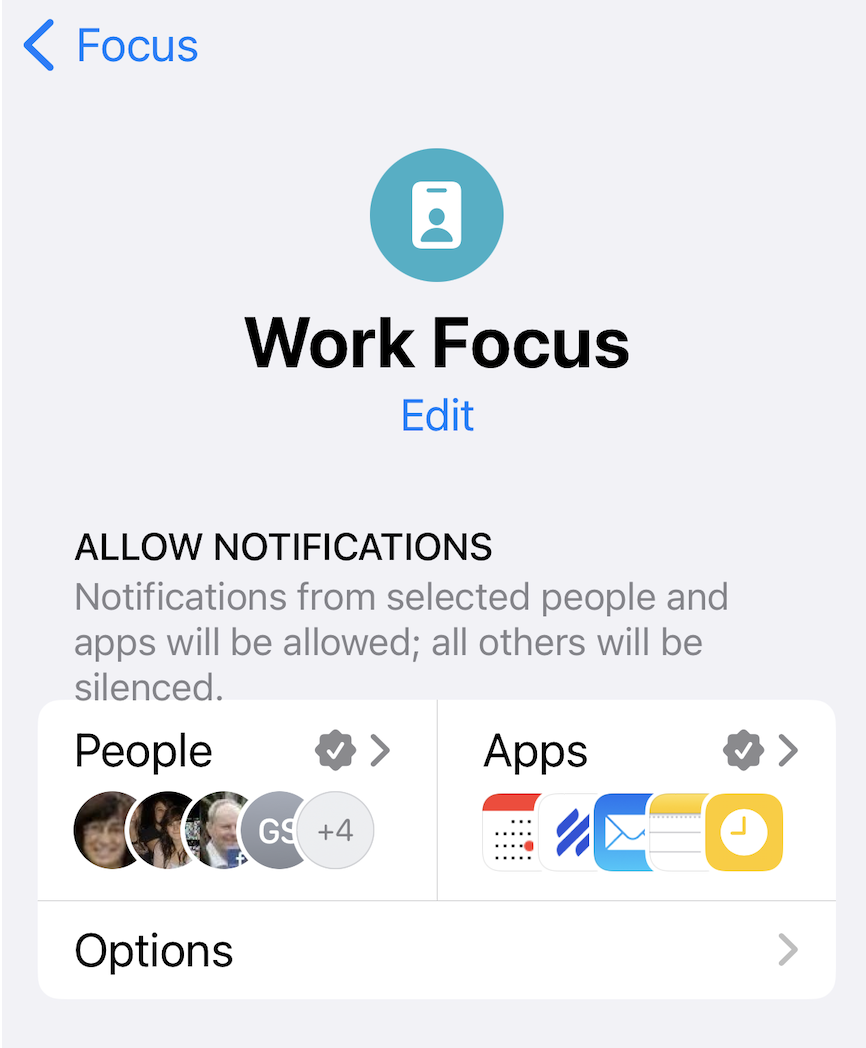
- Add MS Teams: Click on the APPs area and add MS Teams