iPad/IPhone Shortcut and Setup of Share Icon to Home Screen
OVERVIEW:
If you are NOT wanting to use the Native apps for Zoho then you can go to the Safari browser on you Ipad or IPhone and use the Share button to place an icon on the Home screen (or desktop of icons that you use)
Below is a series of screenshots with what you touch to step through this process:
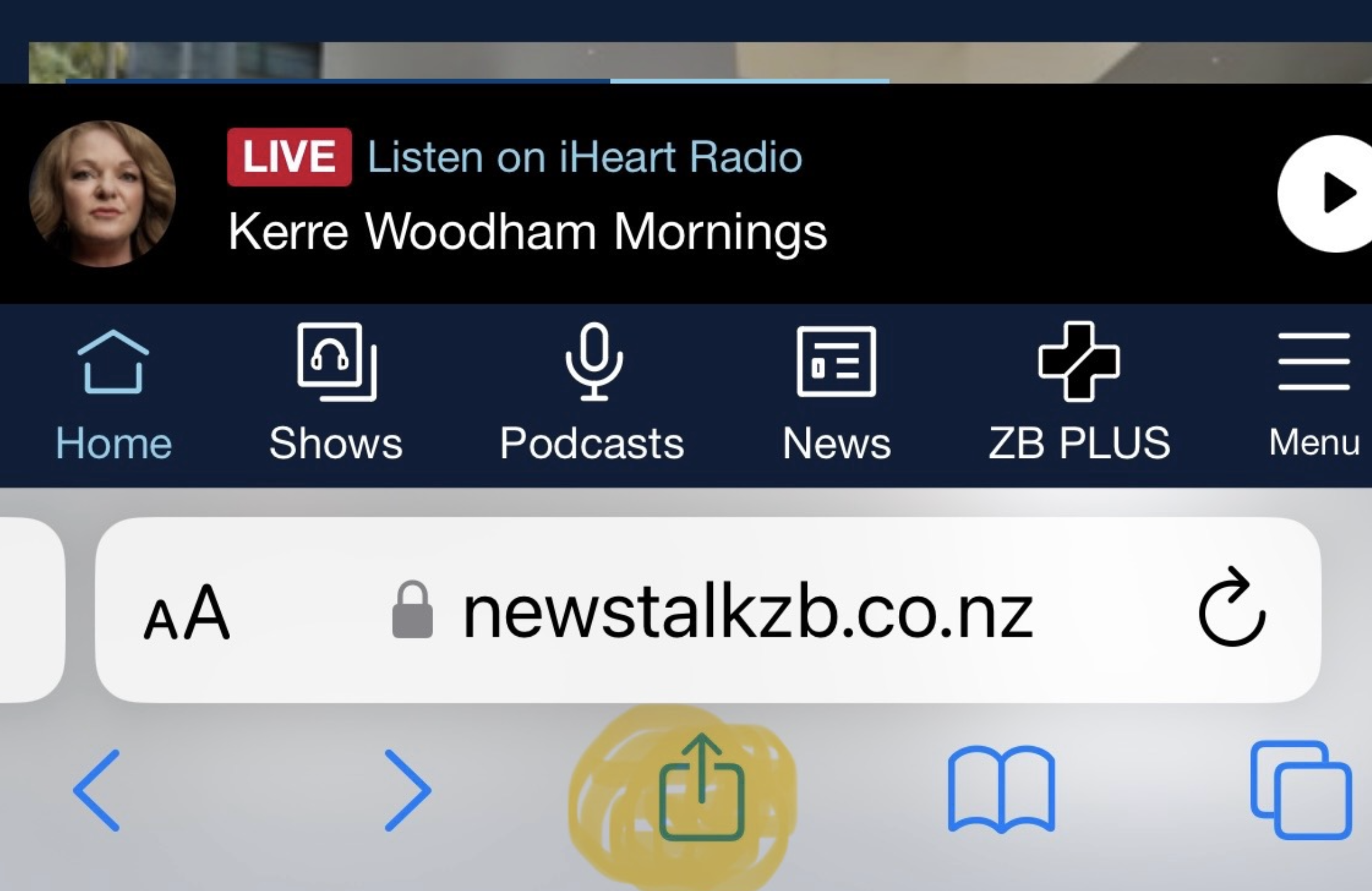
STEP 1. Touch the Share Icon coloured in Yellow
Open the Safari browser, Navigate to www.scaflog.com and then Login FIRST.
Then, at the bottom, click the Share Icon (in yellow)
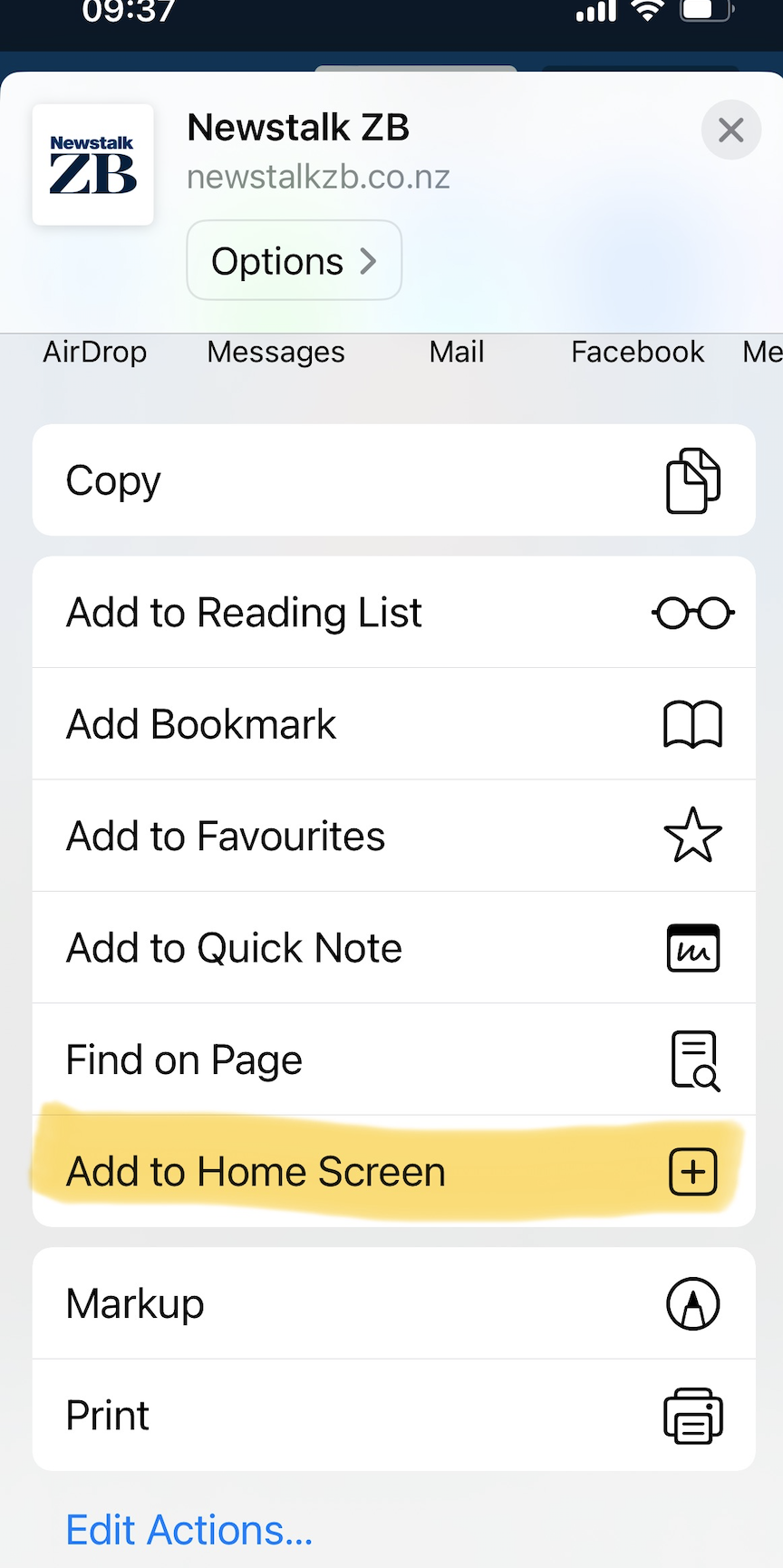
STEP 2: Add to Home Screen
Scroll then click the Add to Home Screen option in yellow below.
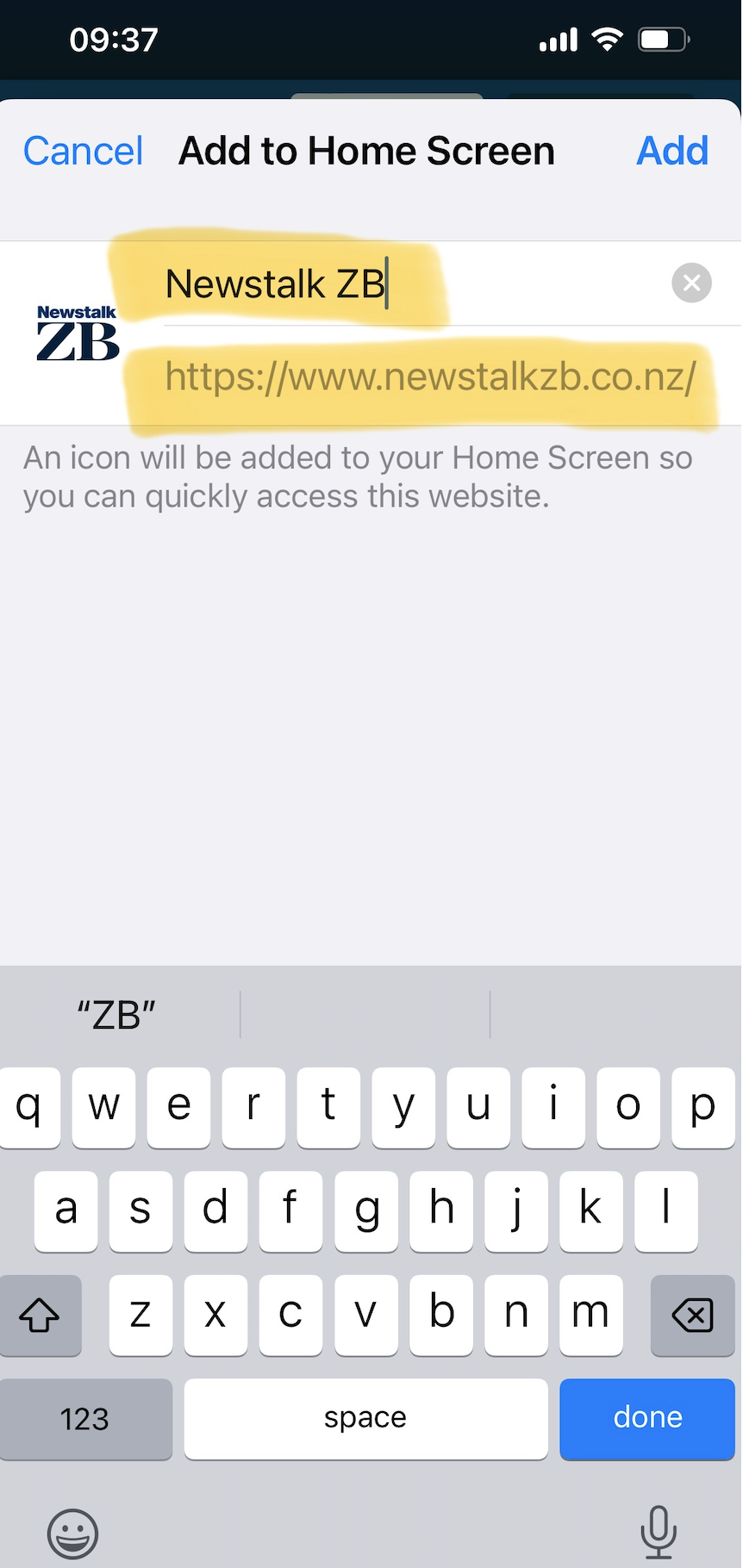
STEP 3: Adjust any Shortcut Icon name and click Add
Double check the highlighted yellow text and adjust if necessary.