How to Set Securities for Assets or Vehicles
OVERVIEW:
This options allows a user login to be tied to an Asset or Vehicle.
Useful for iPads and tablets that staff with vehicles.
STEPS:
- Go to https://creatorapp.zoho.com/100rails/goscaffold/#Report:Asset_List
- SET EMAIL: Setup the Vehicle details (Setup the top details and then scroll to the Asset email and Asset Password settings. If you are using an internal email provided by Scaflog then enter it in eg. truck2@100email.com.
- SET PASSWORD: Ensure you setup an Asset Password if you are creating an Internal Email (ie with 100email.co as the ending) The password must be a long password with no sequential characters and a mix of Upper and lower case, plus numbers and special characters.
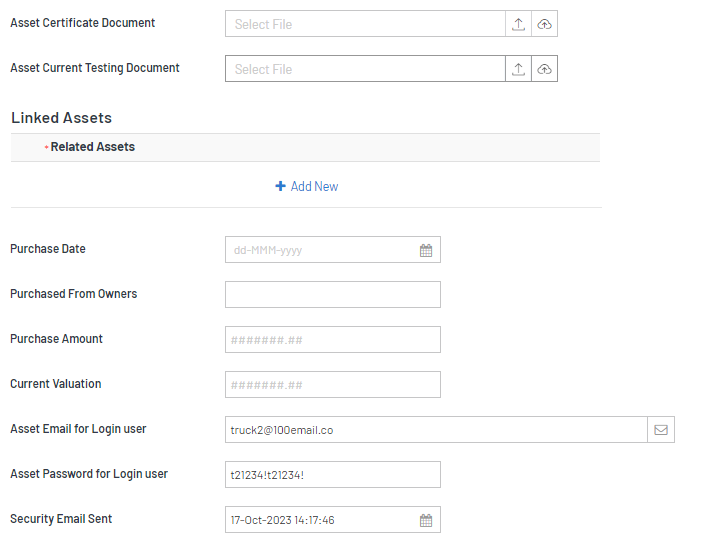
- CREATE INTERNAL: Once the Asset is save then RIGHT-CLICK and select the CREATE Internal Email if you want to create a 100email.co email address.
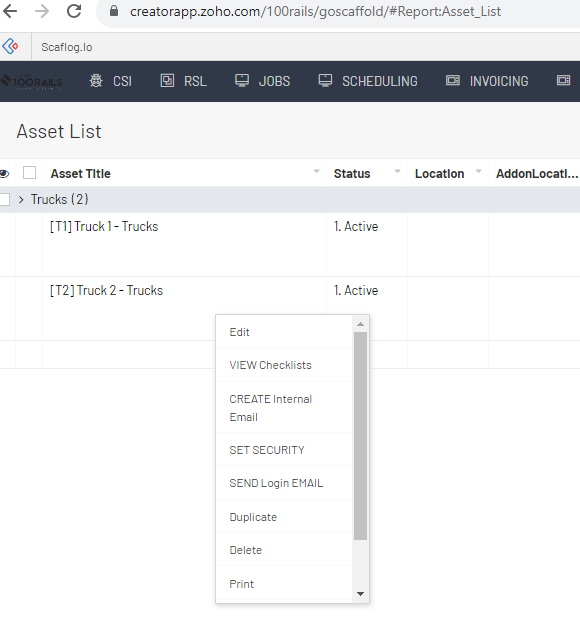
- SET and SEND LOGIN: Once you have confirmed the login to the email then RIGHT-CLICK and SET SECURITY and then SEND LOGIN EMAIL
NB. Now the login will be linked to that asset
TABLET: ALSO If you are using this login as a TABLET in the field in a truck then ensure the person who is scheduling puts the TRUCK asset onto the Calendar activity so you can see the schedule for that truck in MY DOCKETS