*PO (Purchase Order) Numbers to show on Invoices
How to add a PO Number to show on your invoice
Your invoice template will probably need to be configured to show the PO number in the exact location you want it to show on the invoice, please check and let us know. Your request will be put in a queue to be completed, but we will endeavour to get it done asap for you.
NOTE: Different PO numbers attached to jobs, phases, products or activities will now create seperate invoices. So you can push all your charges across at once.
This feature needs to be turned OFF if you do NOT want to create separate invoices for seperate PO numbers (please contact support@100rails.com).
There are now 4 areas we can add a PO number to show on your invoice
- Job PO
- Phase PO
- Quoteline PO
- Activity PO
-
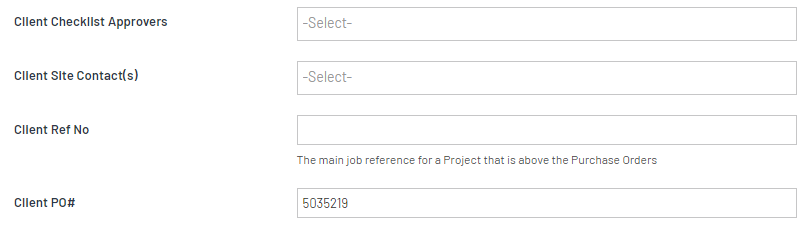
Job Client PO number is when the whole job has 1 PO number only
This is entered in the Edit part of the quote (First Part of quote) and will normally be displayed on the PO Reference Field on your invoice
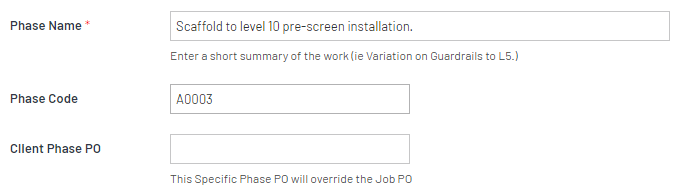
- Phase PO number is for when a phase has a specific PO number
This is entered in the phase description via the green Pencil
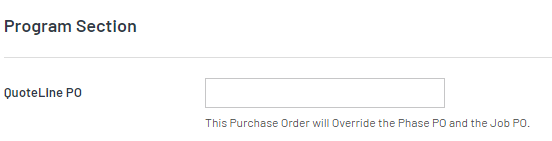
- Quoteline PO is when a specific product has a PO number (ie overhire)
This is entered in when you click the blue + CHARGE button while editing a Quote
- Activity PO is a specific purchase order for a specific activity on the calendar like a variation.
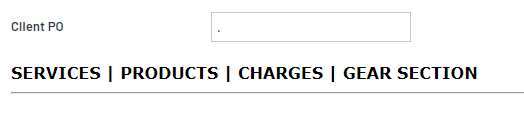
NOTE: If you have several PO numbers for one job. There is a hierarchy in play.
Number 4 will supersede 3, 2 and 1
Number 3 will supersede 2 and 1
Number 2 will supersede 1
Please watch this video to show you all the different places and where they can/will show on your invoice.
Please contact support to enquire about this: support@100rails.com