Scenario Process - Time Allocation Set up
OVERVIEW
Time Allocation is used when:
- Our customers want to use clocking for start and end of day times but still track hours to the job through the time allocation.
- Using vehicles as users instead of people (Jase Scaffolding)
SET UP FOR HOURLY TRACKING:
In the data set tick the box called "Include Time Allocation in My Dockets" to allow any team leaders to log the total hours for the job they did in that activity.
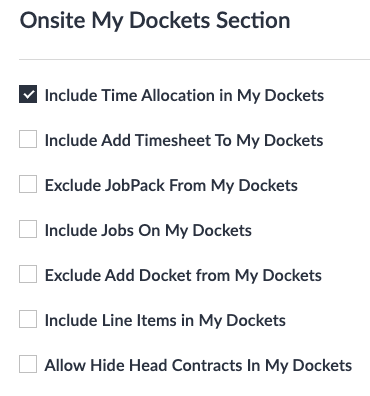
Also, make sure that this box is ticked to exclude the travel KMS from clocking

SETUP OF TIME CALCULATOR:
At times doing allocation you may want an easy way for TEAM LEADERS to work out the total actual hours.
Turn on the following tick box to "Include Time Calculator for time Entries" and this will make it easier for the guys to work out the total actual hours. If you dont want your clocking guys to see the extra options in the clocking screen also tick "Exclude Extra Clocking Options".
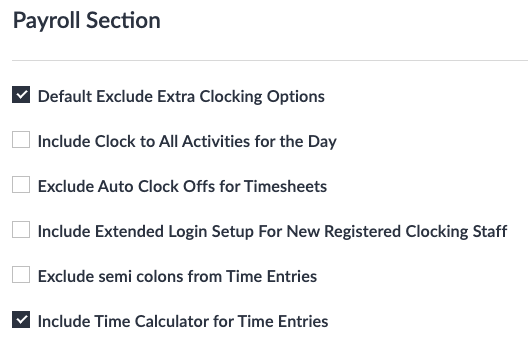
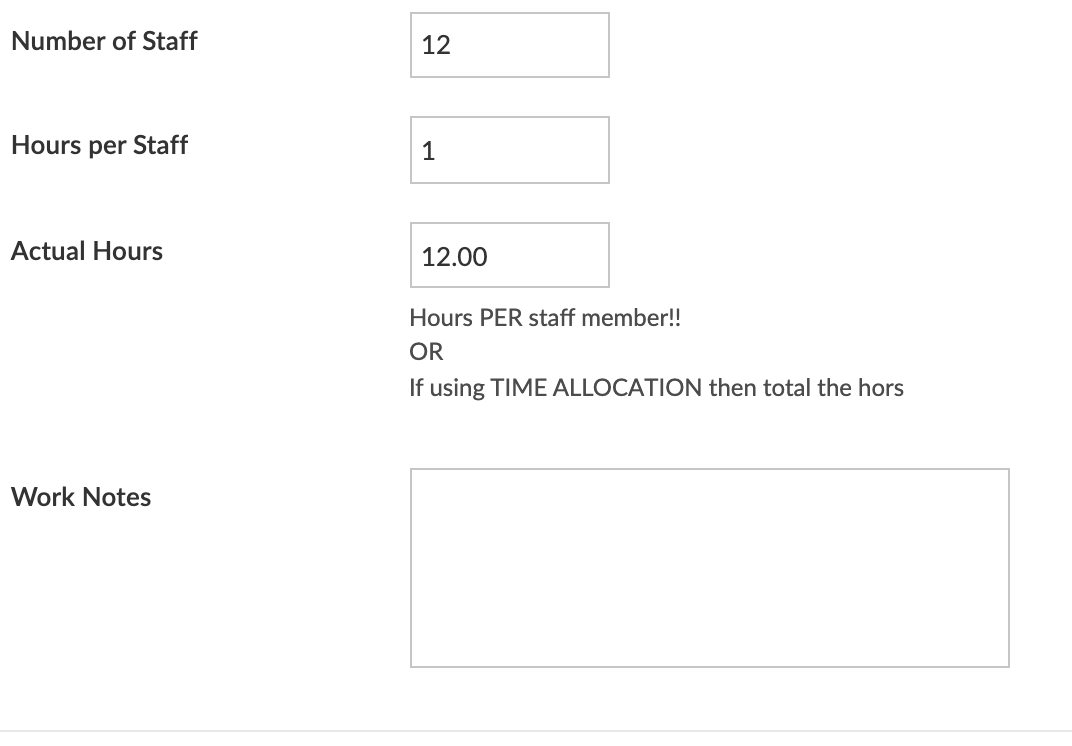
PS. Below is what it looks like in the ADD TIMESHEETS screen for the team leaders.
TIMESHEET TYPE SET UP FOR TIME ALLOCATION
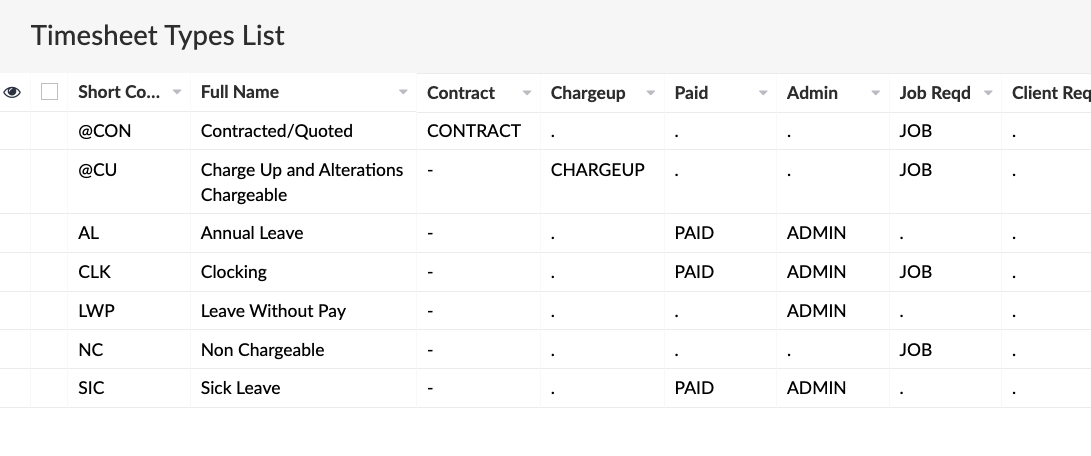
Above is a standard set up for time allocation (note the PAID timesheet types)
Below is the internal set up for all JOB timesheet types that require time allocation to a job. Just make sure box for "Default Times to Zero" is ticked.
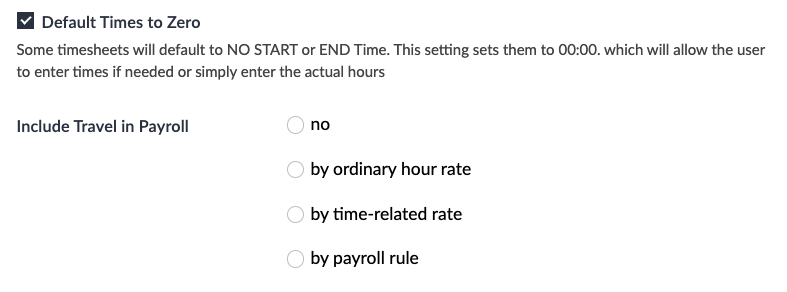
JOB FOR CLOCKING USERS TO CLOCK ON AND OFF
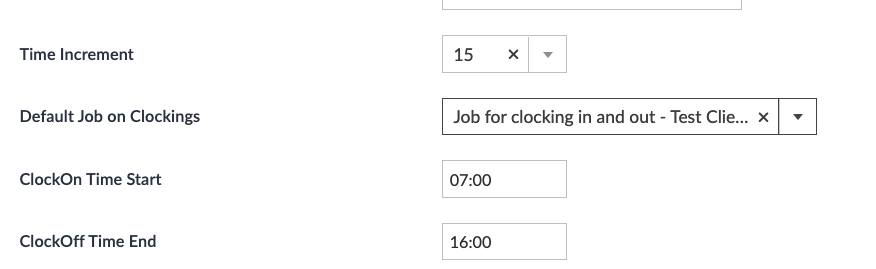
You need to create a clocking job in Latest jobs, the Job stage must be set at Approved or above. If clocking in at the yard make sure you put their yard address as the work site address.
Then go into the dataset and set this job as a default job on clockings (under the Payroll section).
STAFF SET UP FOR CLOCKING
Set up the clocking user for the device being used to clock in and out of or for each (there is a limit of how many devices that this login can be used on).
Set up the migadu email for this and create a login for Scaflog.
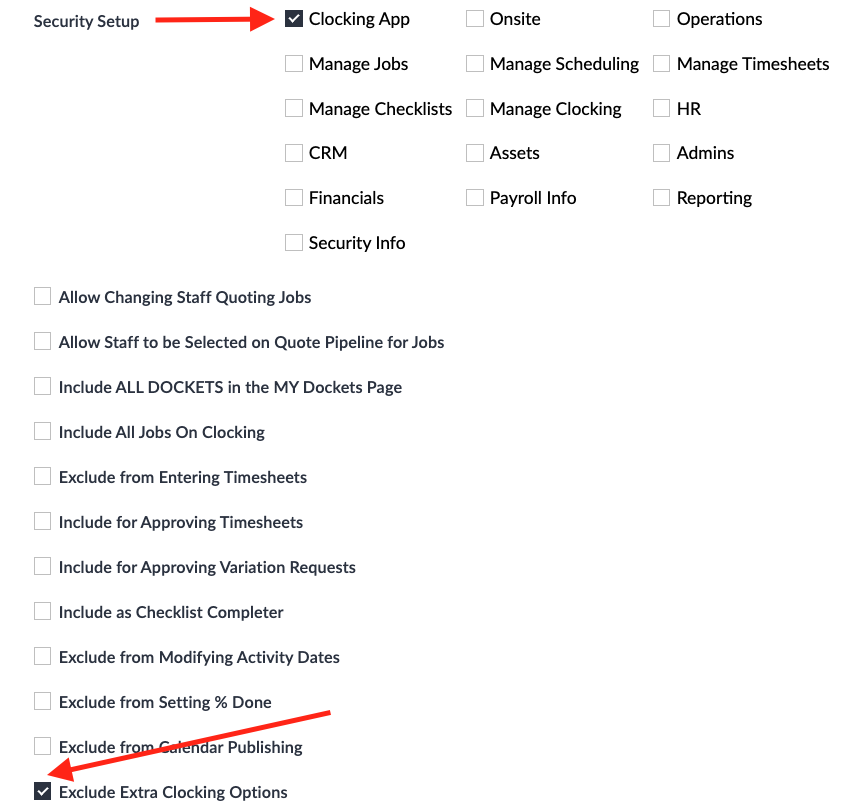
STAFF SETTINGS:
They only need to have a PIN NUMBER assigned to them to clock in. This can be done for the client by selecting all staff that will be using clocking and selecting ASSIGN PIN at the top of the screen (like a bulk edit but unique for each)
The company can choose if they want the staff member to have their own login, but we would prefer them not to.
PLEASE NOTE:
For each "clocking user" can only have about 10 devices logged into that Zoho account for clocking on and off each day. For larger companies you can have more than one clocking user, just use the same password for them. Also remember if the leading hands are going to have onsite access they can also have clocking on their phone and can clock in and out using their own device/zoho login.
Clients who use this are: Metro, Alta, Complete Access AU, Daveron and AG Industrial.