*CHECKLISTS: Managing Repeating Checklists in the Office
OVERVIEW:
Once you have SETUP the REPEATING checklists, the system will keep everything up to date for you automatically as you put new jobs in progress and finish jobs it will remove them from the calendar automatically.
NOTE. Depending on the repeat settings, the system will MOVE all un-completed checklists from the PAST to the NEXT business day. This means for example if you DON'T complete an inspection for any reason on a day that the system will overnight move it to the next business day. You can then drag and drop it to any date in the future you like but you cannot drag it into the past.
METHOD 1. Using Calendar Checklists
Go to the CHECKLIST Menu and select the CALENDAR Checklists option.
SCREENSHOT:
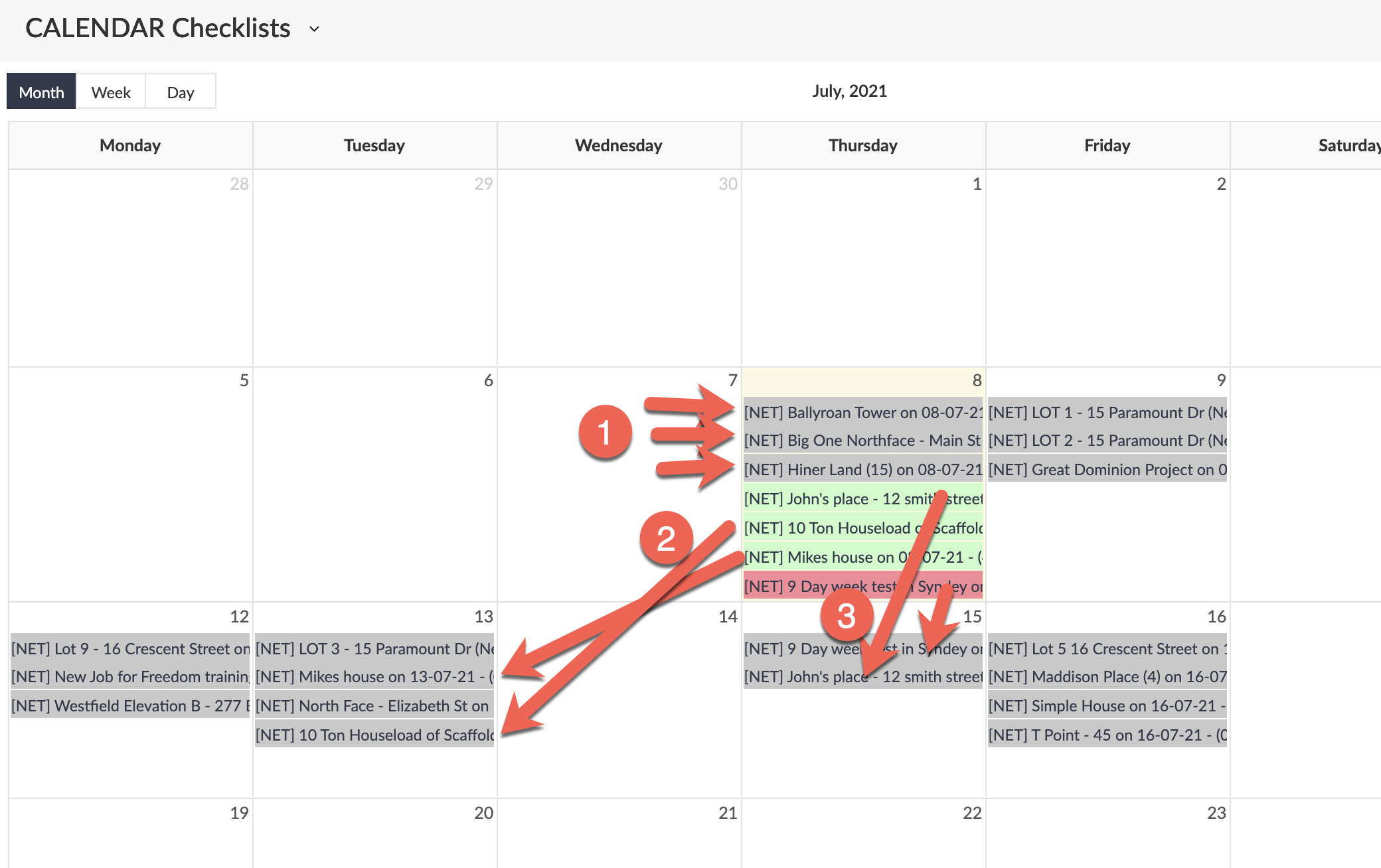
1. CHECKLISTS CREATED but NOT DONE : These checklists are planned to happen on the 8 July, they are GREY indicating that they have NOT BEEN COMPLETED YET. The checklists will NOT be generated in the future for these un completed checklists.
2. PASSED or FAILED Checklists that are DONE and MOVED: These checklists will be GREEN for passed or RED for failed. In these examples the Checklists have been generated for the future BUT they have also been DRAGGED and DROPPED to another day for planning purposes NEXT week (this is for weekly inspections).
3. PASSED or FAILED Checklists that are DONE and CREATED: These checklists are done and the NEXT visit has been auto generated on the SAME day in the future. This example checklist is setup for a weekly repeat but other types of repeating are possible e.g. Monthly. (see the Setup of REPEATING Checklists article)
METHOD 2. Use the SORTING Checklists to plan the checklists into WHO will complete them..
This method allows you to group the checklists into THE ASSIGNED guys for doing things like Inspection Runs. This means you can easily drag and drop which checklist/inspections are done by which person.
Go to the CHECKLIST Menu and select the SORTING Checklists option.
https://creatorapp.zoho.com/100rails/goscaffold/#Report:SORT_Checklists
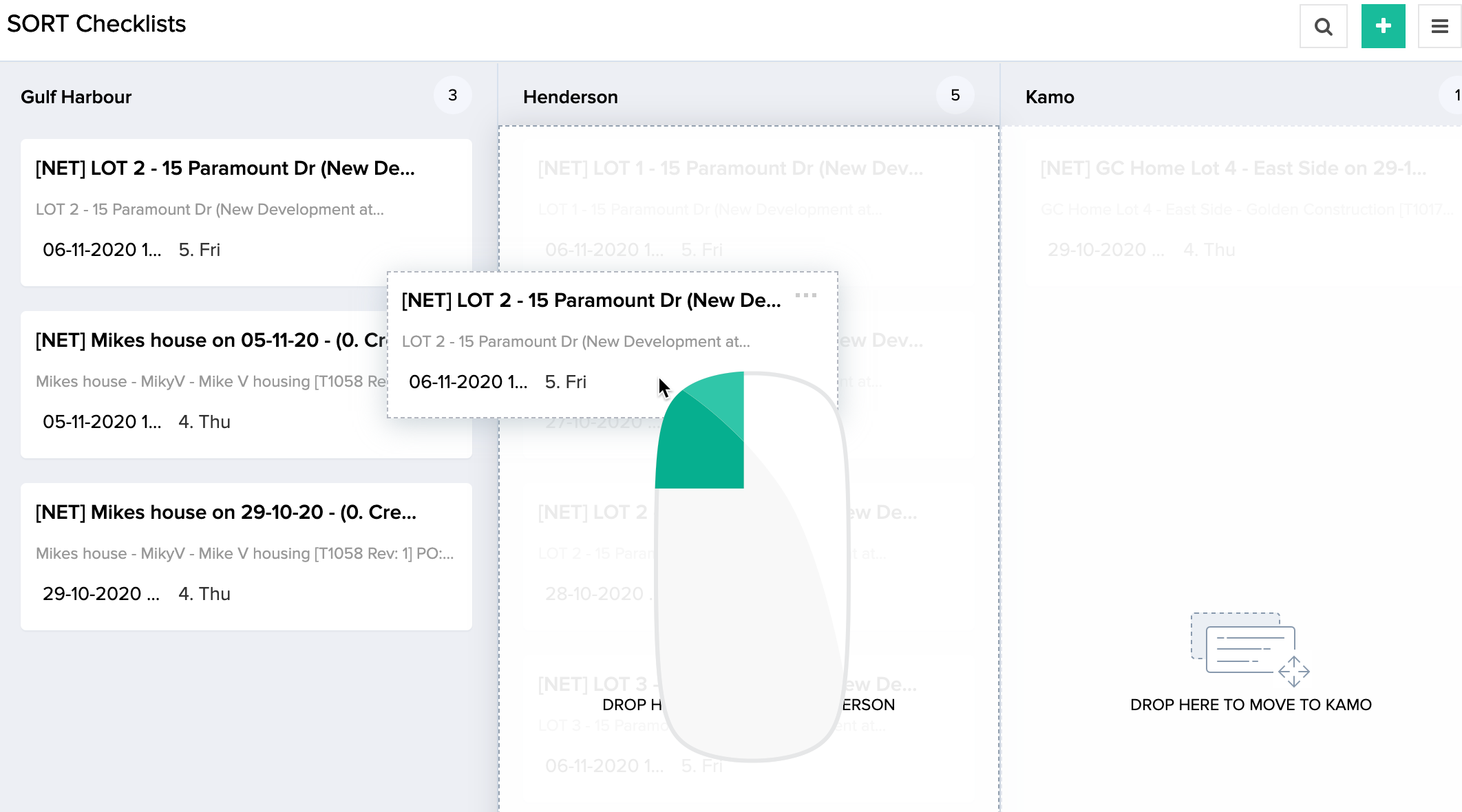
For this to work you will need to make sure that these staff members have been set up to be a "Checklist Completer" - this box needs to be ticked in their staff profile. (Always click SET SECURITIES when you make any changes to someones Scaflog Profile).
