ISSUE: How to SIGNOUT and LOG back in (Login) on Mobile device
OVERVIEW:
From time to time we may ask you to SIGNOUT of our software and log back in.
Below are the screenshot steps on how to do this:
1. PRESS the four little icons at the top left from the main menu on the mobile app (see below)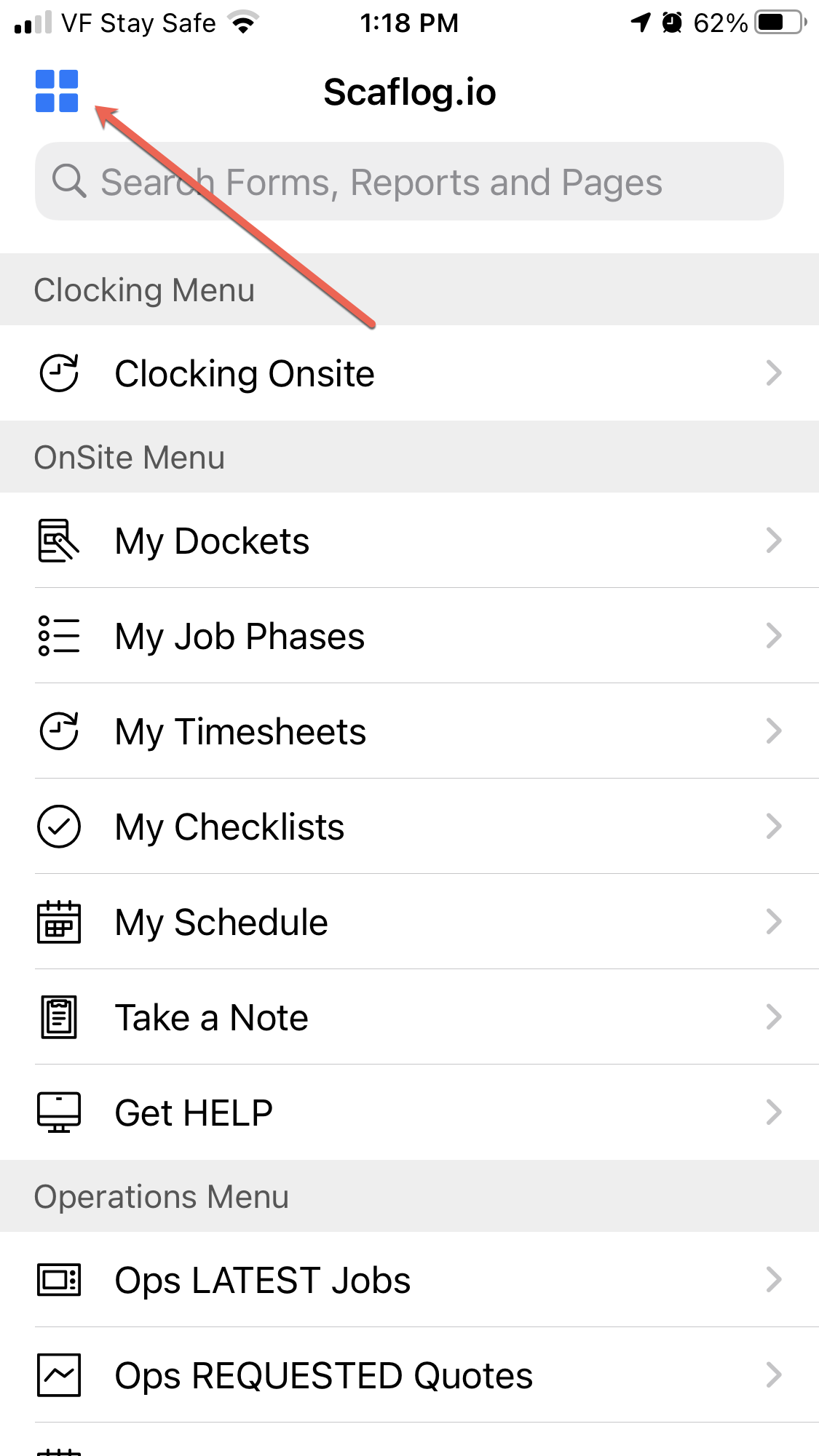
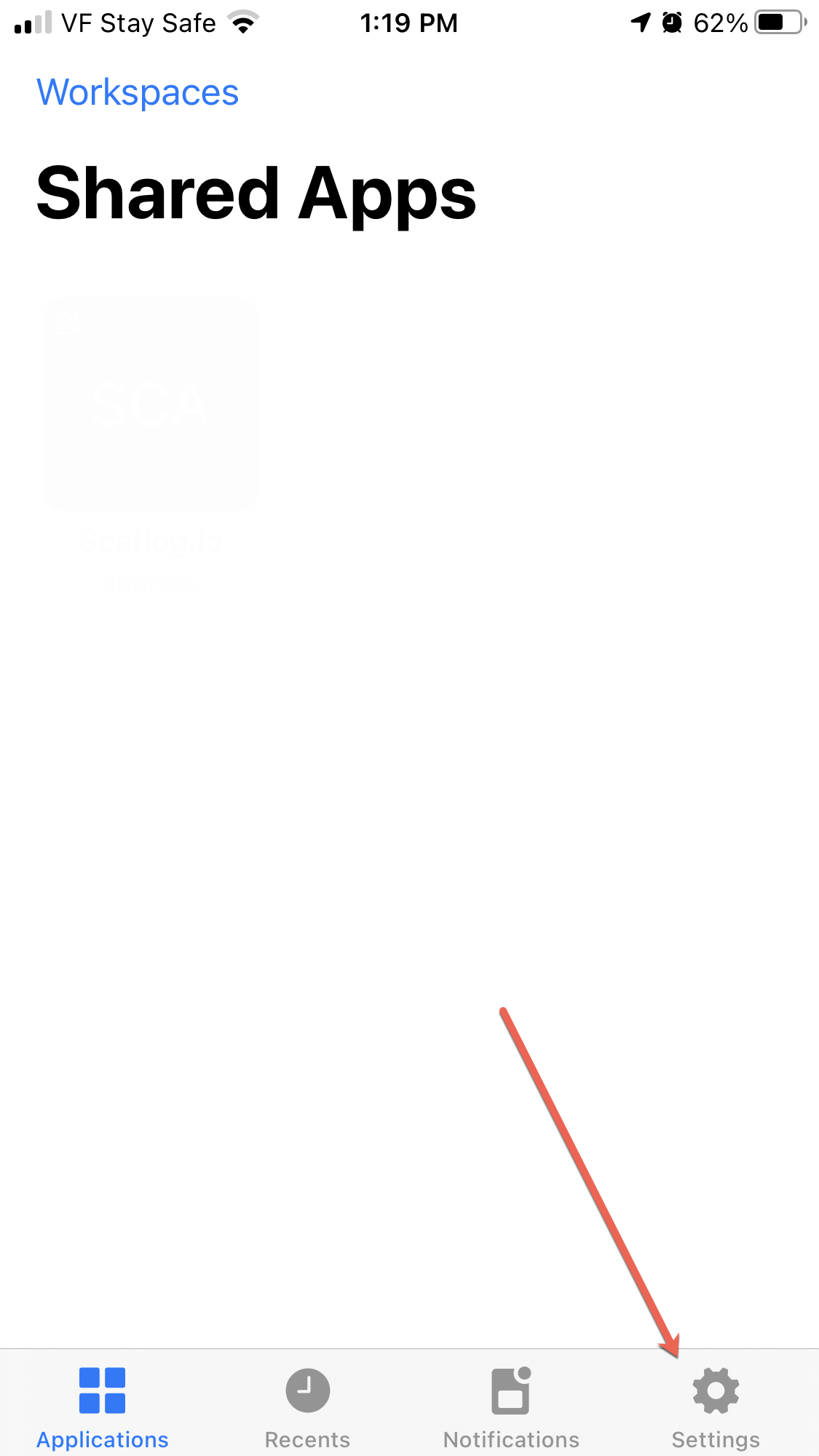
2. LOCATE the Settings Cog icon at the bottom right and press (see below)
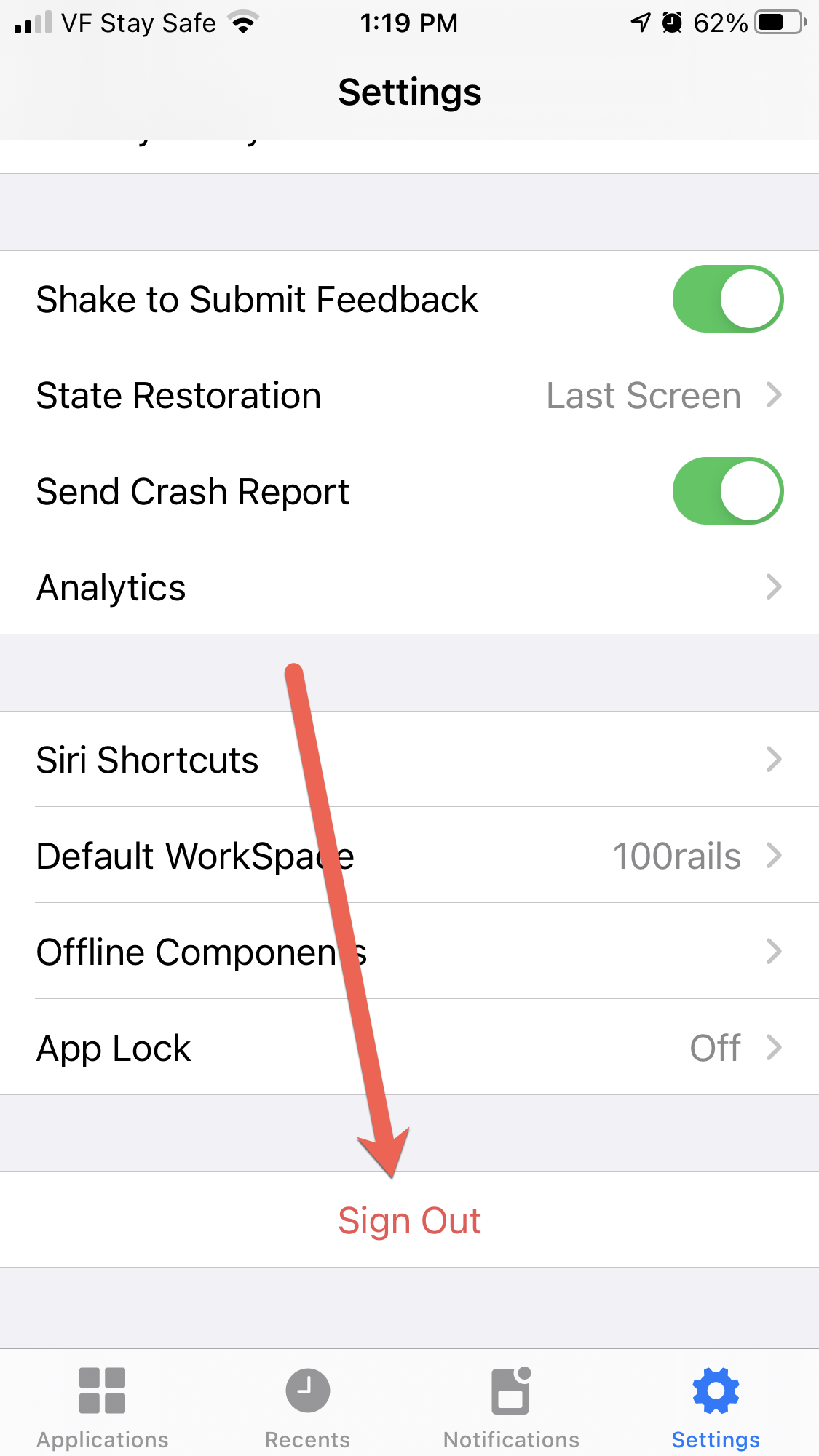
3. SCROLL down to the SIGNOUT option and press to sign out (see below)
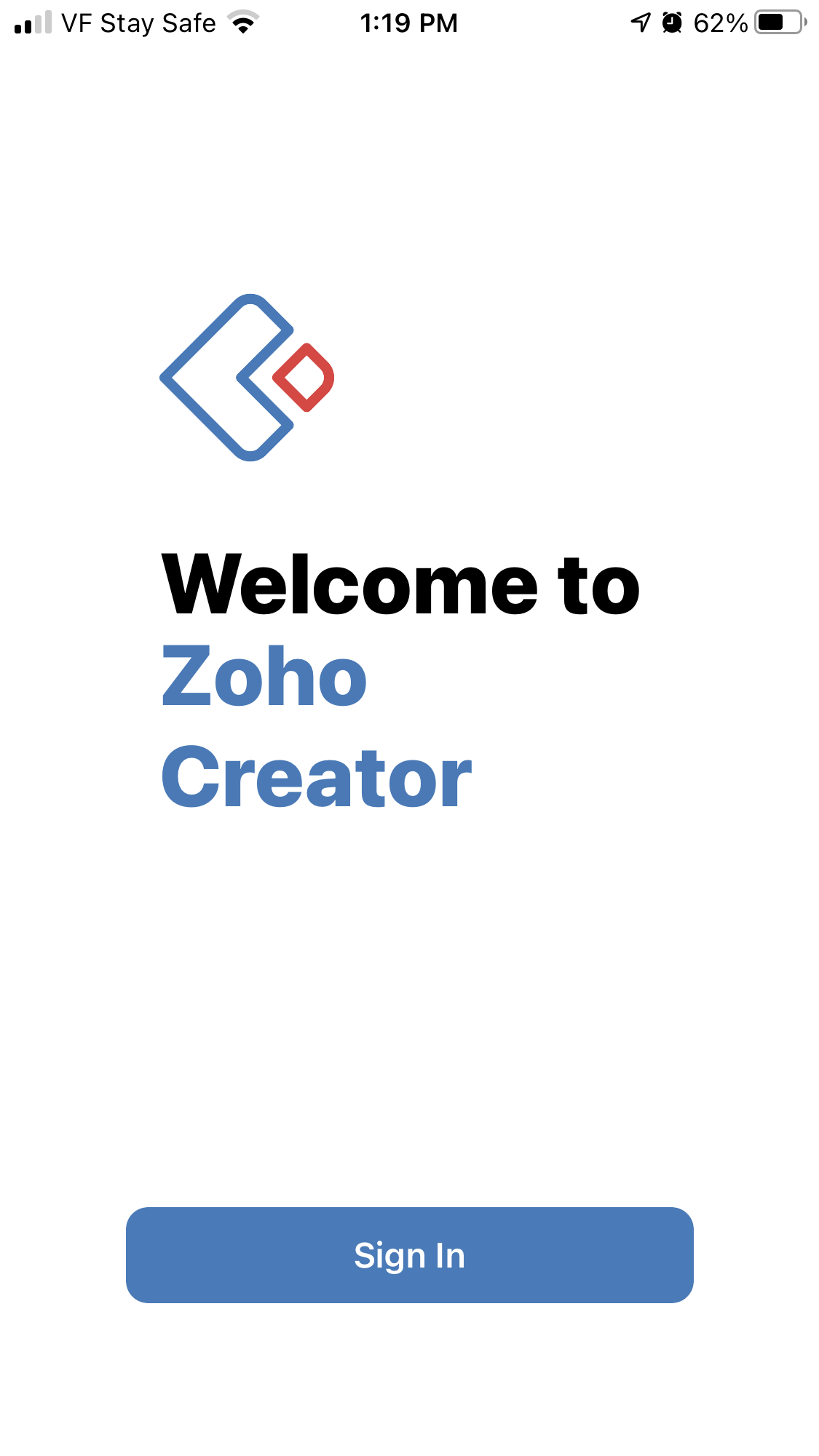
4. PRESS the SIGN IN blue button
4. TYPE in your login EMAIL address and your password (see below)
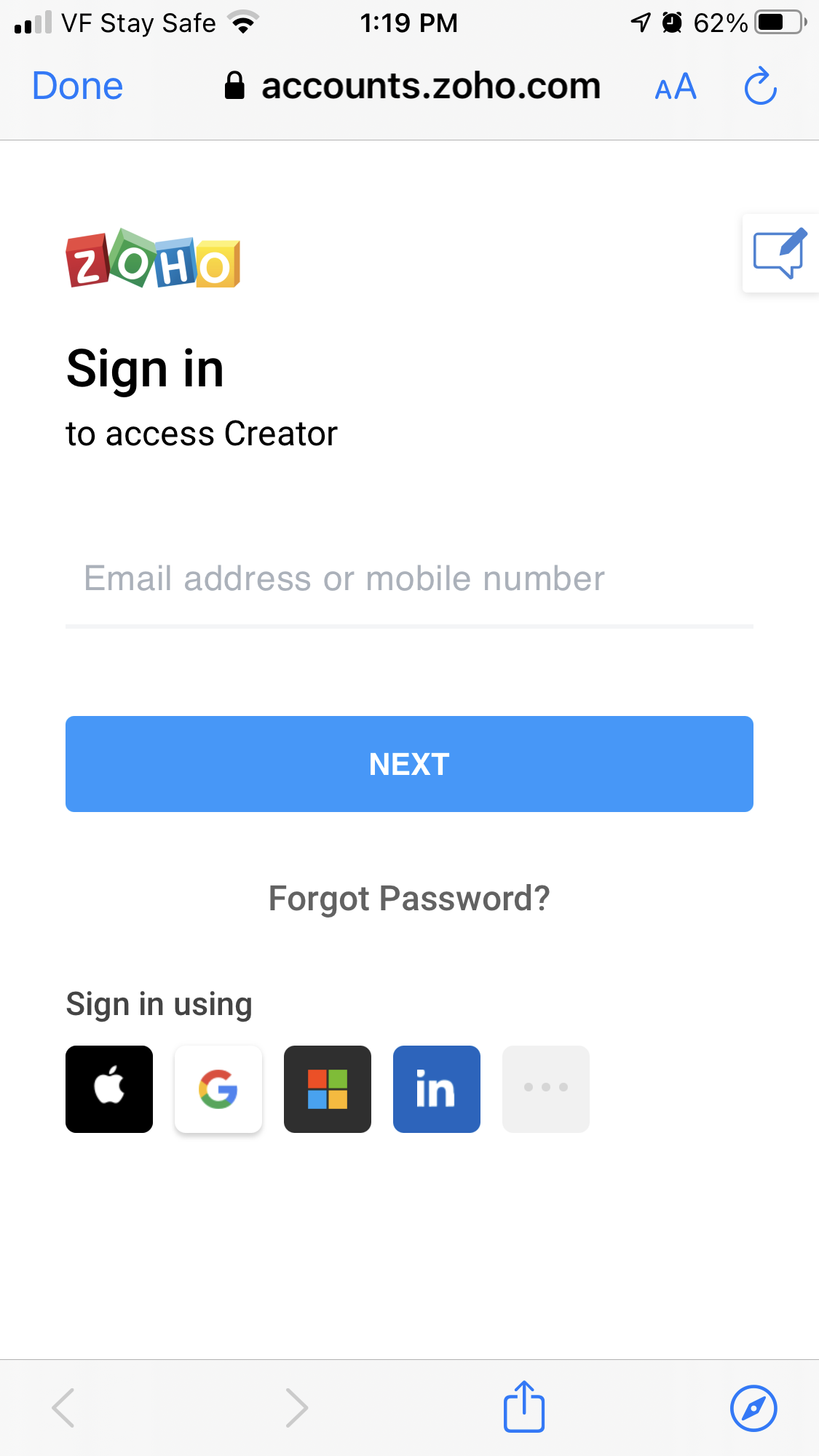
5. PRESS on the SCA red icon to access the software again.