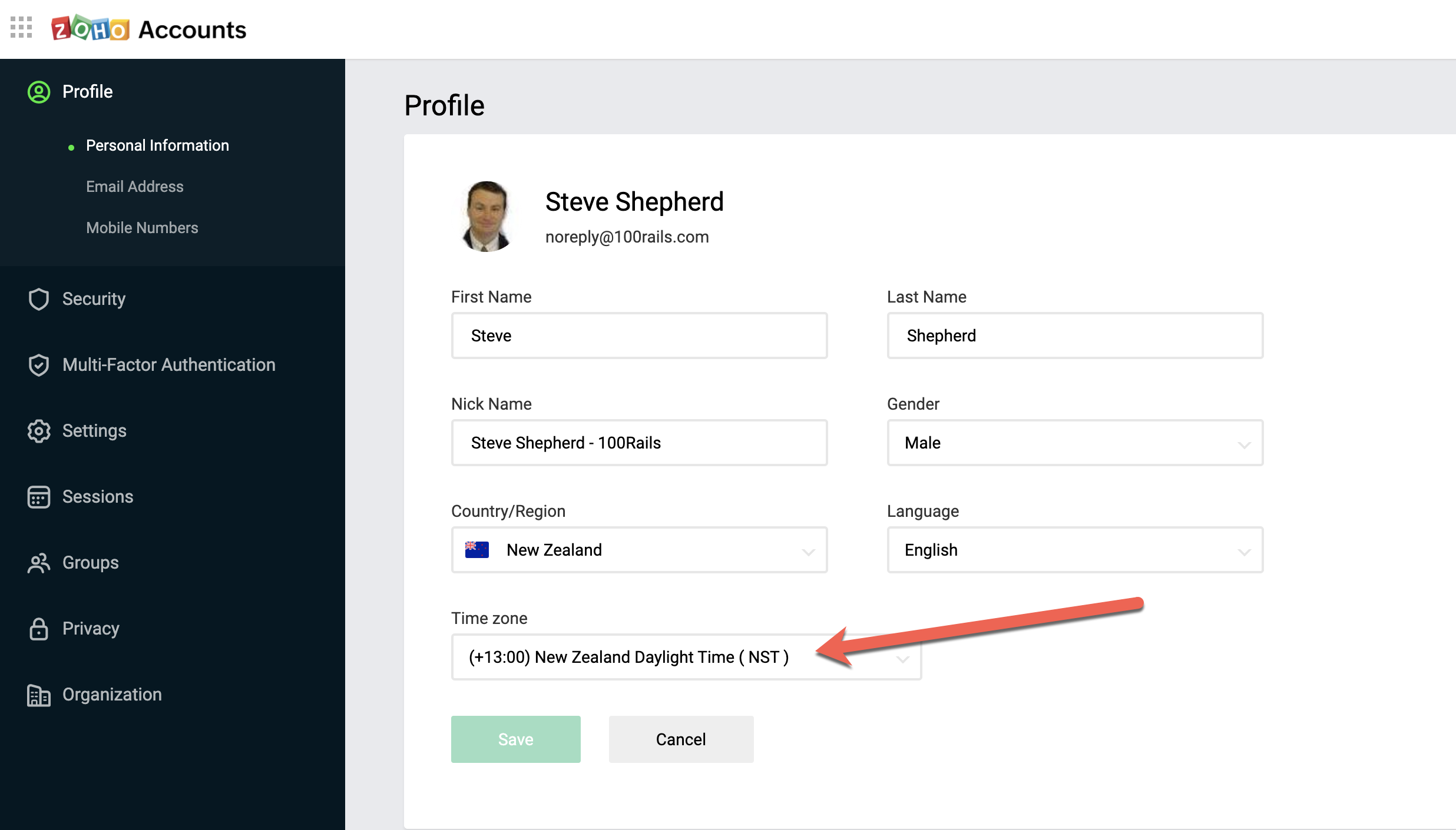
Checking the Timezone in your Account Settings
OVERVIEW:
Click the following link to check your timezone:
https://accounts.zoho.com/home#profile/personal
Check these settings on your phone
1. Set date & time to Automatic
Even if it looks correct, manual settings often cause this.
- Go to Settings → Date & Time
- Turn on Set Automatically
- Turn on Automatic time zone
- Restart the phone
👉 This fixes it most of the time.
2. Check time zone specifically
Sometimes the time is right but the time zone isn’t.
- Make sure it’s set to the correct region (e.g. New Zealand)
- Do not set a custom or manual zone
3. Turn off VPN
If the user is on a VPN:
- Disable VPN
- Restart the app
- Try logging in again
VPNs can cause time-sync mismatches with server validation.
4. Force app refresh
- Fully close the Scaflog app (not just minimise)
- Reopen it
- If needed: log out → log back in
5. Update the phone OS
Outdated OS versions can fail time validation.
- Install any pending system updates
- Restart the phone
6. Last resort: reinstall app
- Uninstall Scaflog
- Restart phone
- Reinstall app
- Log in again