Quotes - Request for Quote Part 1
OVERVIEW: Adding a new RFQ /Job is broken down into 2 parts
1st Part: The initial request, job and client details etc. This should take no longer than 5 - 10 minutes to complete, all dependant on how much information you have at the time of the initial request.
2nd Part: Adding descriptions, charges, scope etc to build your quote that is to be sent to your client
PART 1: The Initial request is made via email, phone, etc
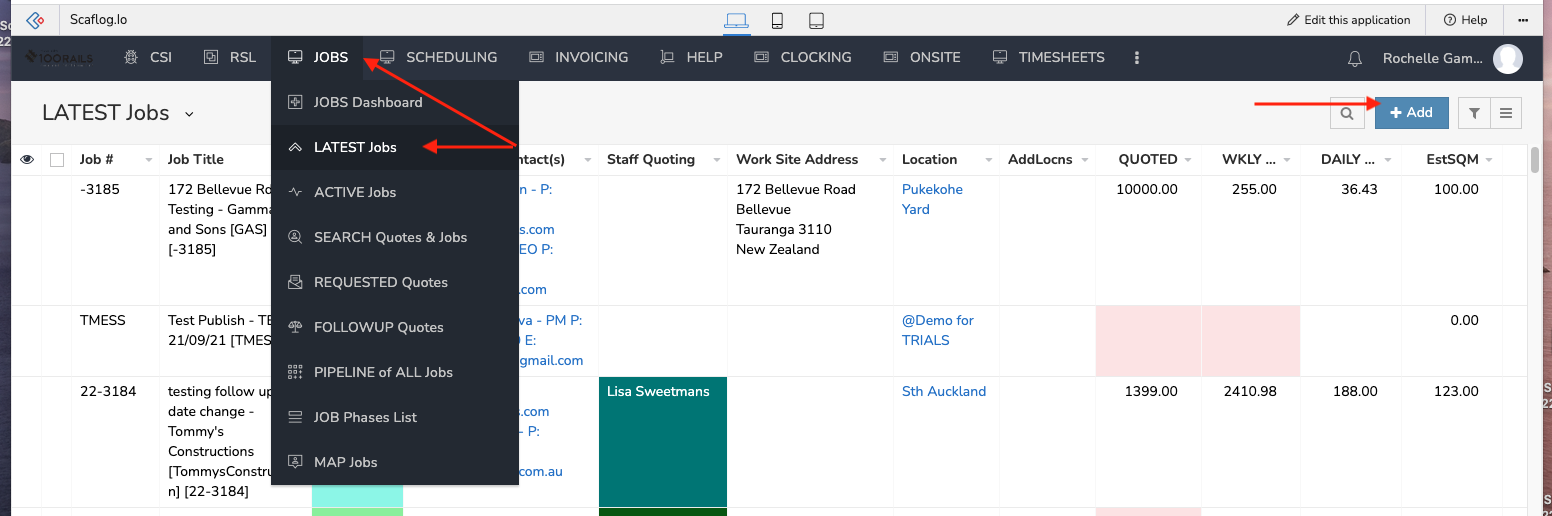
1. Go to the Jobs Menu and LATEST Jobs
2. Add the new Request For Quote/Job by clicking the blue + Add button at the top right of your screen
3. Start compiling all the information that you have about your new RFQ/Job
JOBS SECTION: Add all the details that you have been given by the customer, You can enter as much detail here as required, but if you don't have all the information , don't worry you can always come back and edit this section at a later date. Anything marked with a red asterisk is compulsory to answer.
Job Reference: Is usually the street address, building name or how you will identify this job uniquely
Job Stage: Request for quote,or Job accepted (this does not schedule the job)
Client for Invoicing: Use an existing client or click + Add a lead/Client (Forgotten how to add a lead/Client? (See related document: CRM Menu How to add a new Client)
Client Quoting Contact: This is who will receive the quote
Client Site Contact: This is for contacts that will need H&S Docs, checklists, etc This field is not mandatory so can be left blank if your quoting contact is the same as your site contact
Jobsite Webpage: If required
Worksite address: Handy, as this will populate the distance from your Yard/Office to worksite and how long it will take to get there. Also required if your Job reference is NOT the site address.
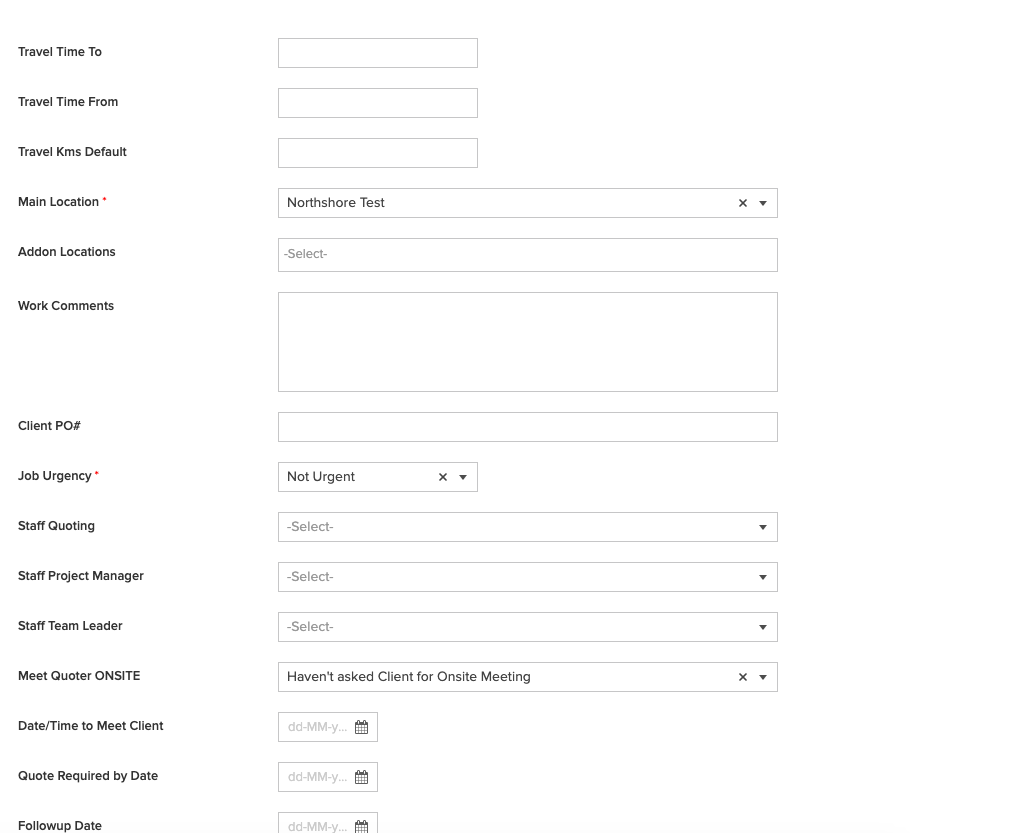
 JOBS: Travel time To/From: Add these if you know them
2 x mandatory fields
Main location: This is your Yard or Office location already set up for you
Job Urgency: Drop down box with set urgency times, choose one or leave as Not Urgent
Client PO# This is the place you put in the PO number for this job if required
Staff Quoting: This name will be on your quote for the client (this can be made mandatory if requested)
Project Manager, Team Leader: Again these don't need to be filled in if at this stage of the RFQ you don't know, but this is where you can enter once job accepted
Meet Quoter ONSITE:Date/Time to Meet Client: If the Client would like a site meeting (this is for your info only, no reminders or calendar bookings are made)
Quote Required by Date: If the RFQ has a tender date requirement
Followup Date: If you would like to set a follow up date for this RFQ
QUOTING SECTION: We normally train you in adding this section in the 2nd Part-of the RFQ, but if you know the scope etc put in here. Special Terms: add what special terms you require, If you have more than 1 quote format choose your quote format here.
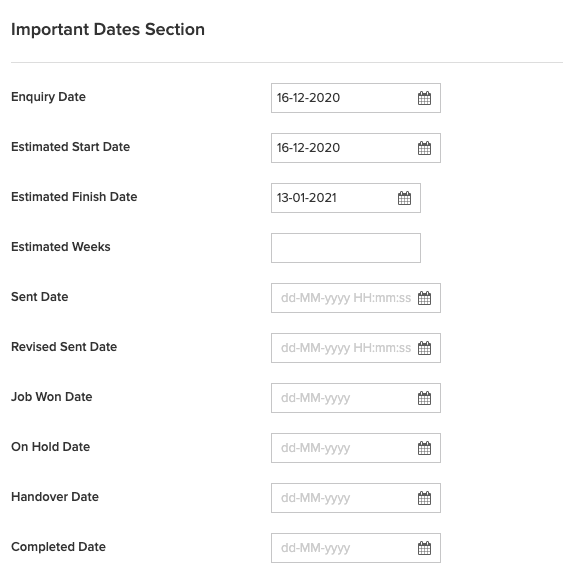
 Important Dates Section: Some of these will auto populate as the quote/job moves through Scafog.
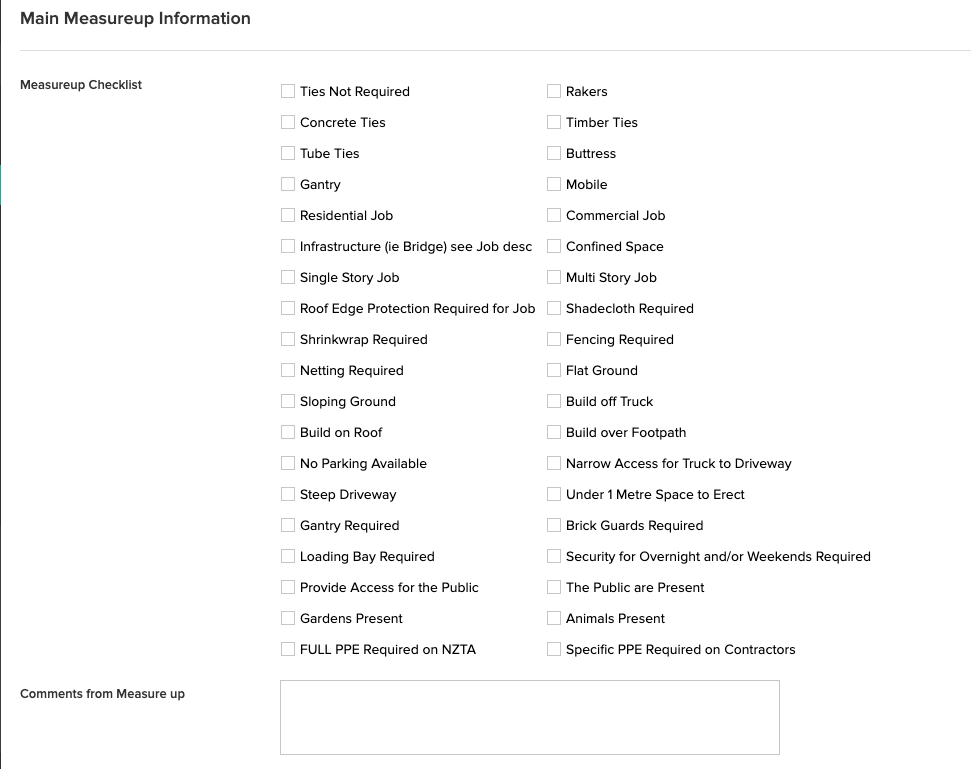
Measure Up Section: Job Checklist, Tick box section for any Inspections etc that may be required for this job. These DO NOT create alerts or reminders.
NOTE: (Red square) These tick boxes are for advance settings only, DO NOT USE. Please email support if you want to use these.
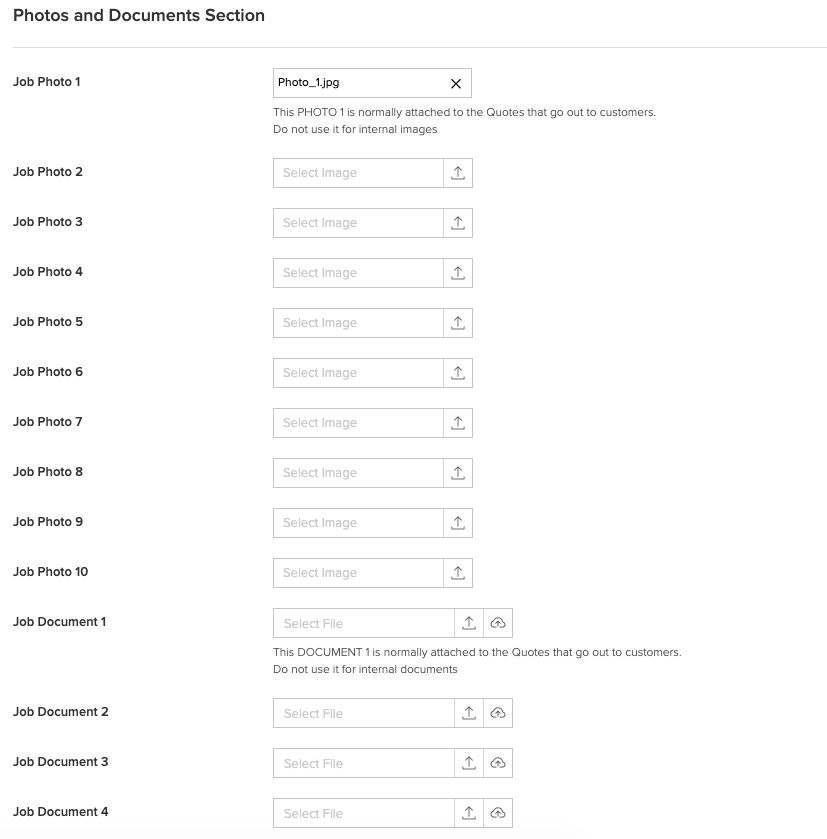
 Job complexity onwards: The more information you put in here the more information your guys on the ground will have. (Via Job Pack)
You can enter as much detail here as required, but if you don't have all the information ,don't worry you can always come back and edit this section at a later date.
 Main Measureup Information: This is a fully customisable section. What you see here is the default version, Tick any boxes that are relevant to this RFQ and/or any comments, this information can be viewed on the Job Pack. You can enter as much detail here as required, but if you don't have have all the information, don't worry you can always come back and edit this section at a later date. Please email Support to customise this list for you.