*CHECKLISTS: How do I email a Checklist automatically?
OVERVIEW:
All checklists can be set up to email or text to yourself or your clients. Please advise if you require this to be automated. Emails can be sent from PC, Tablet or Phone.
You will need to have the correct Security Settings to be able to email checklists
Please advise the team at support@100rails.com, of which checklists you would like to be Automatically sent to staff or clients
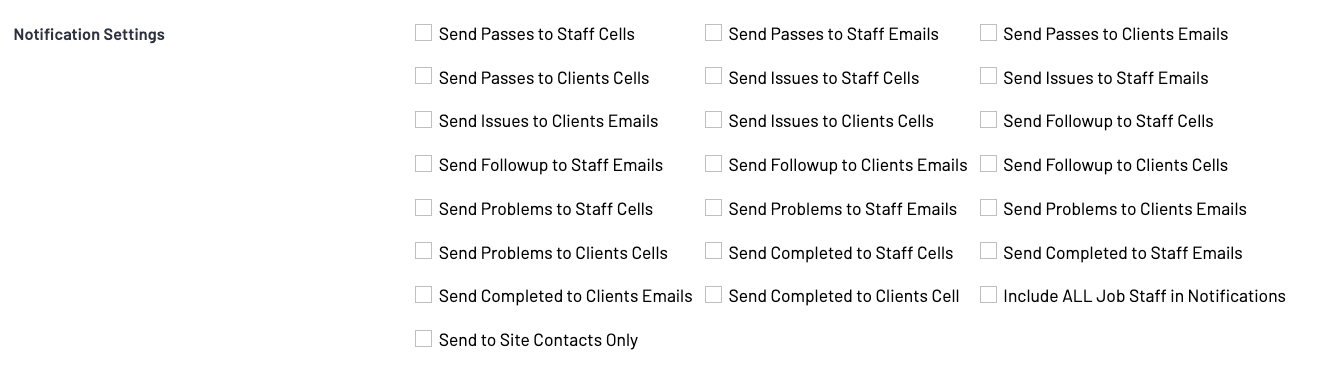
To email a checklist to the office or to the client.
FROM PC:
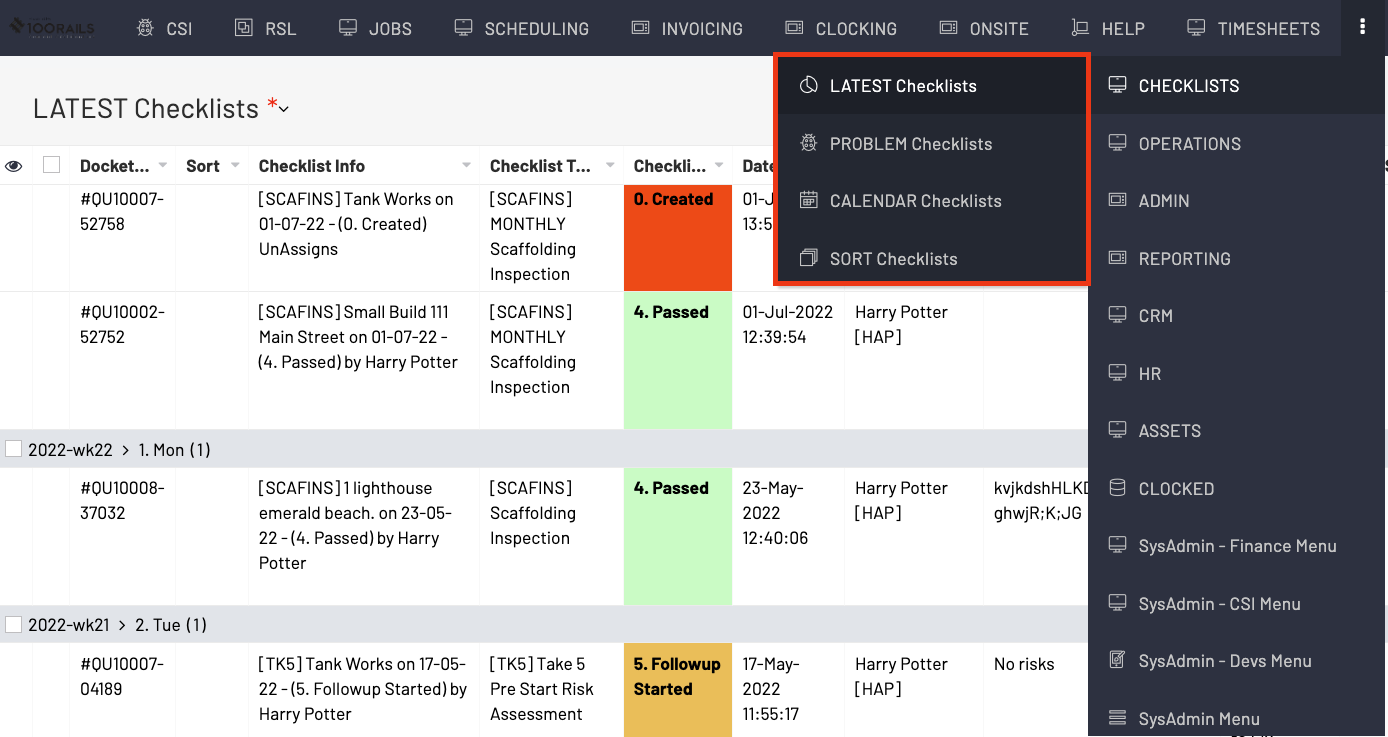
- Checklists Menu
- LATEST Checklist - Easy to find if checklist has just been done
- PROBLEM Checklist - Easy to find the Checklist has a problem/Issue
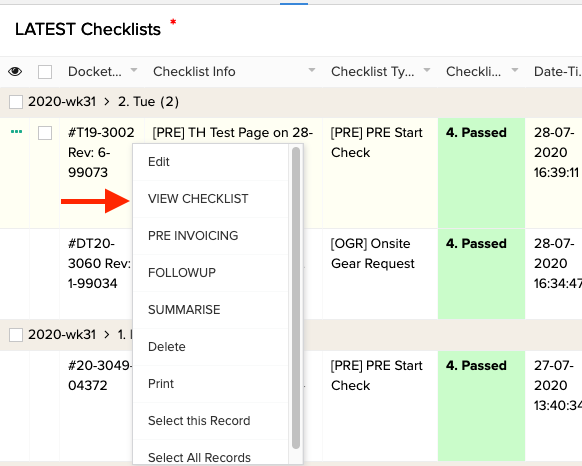
- Right Click and View Checklists
- Add/confirm email address to whom Checklist is going to
- Scroll to bottom and Click Send Emails
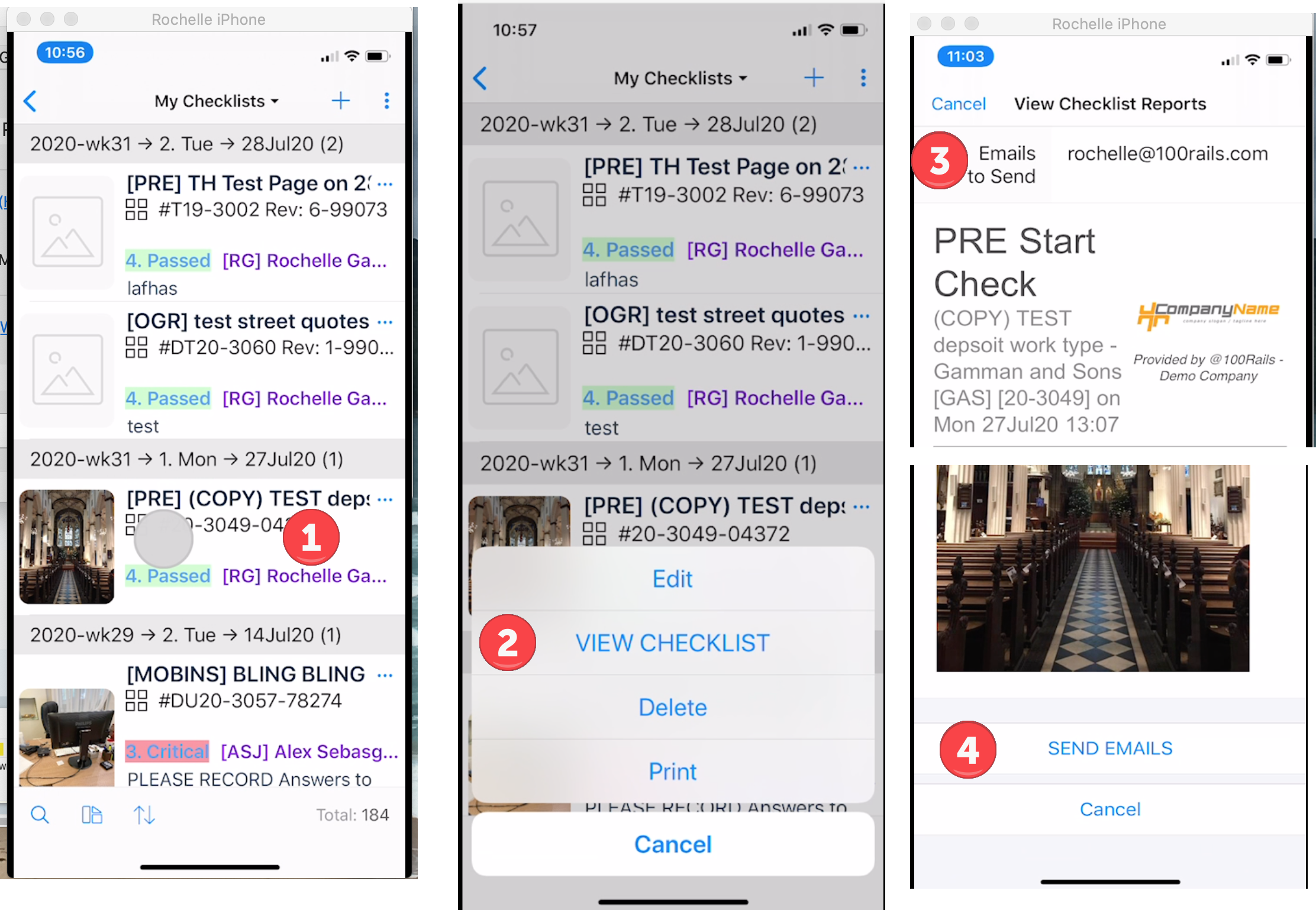
FROM PHONE OR TABLET: (Please confirm a tablet is the same)
In OnSite Menu
My Checklists
1.Push and hold Checklist required
2. View Checklist
3. Add/Confirm email address to whom Checklist is going to
4. Scroll to bottom and Click Send Emails