*TIMESHEETS: How to edit a timesheet
OVERVIEW: There are times when you will need to edit the timesheets, maybe a forgotten lunch break or start time is wrong.
There are two areas within Scaflog where you can edit timesheets. Timesheet Menu and Onsite Menu/My Dockets.
1: TIMESHEET MENU
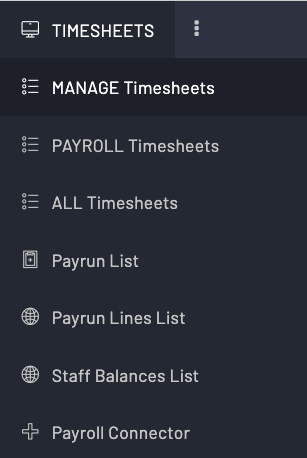
You can edit timesheets in either Manage Timesheets or Payroll Timesheets.
Editing is the same for both views.
The difference between the views are:
- Manager Timesheets - Shows the timesheets in day order, with all staff.
- Payroll Timesheets - Shows the timesheets by staff by the week number.
THE RIGHT CLICK:
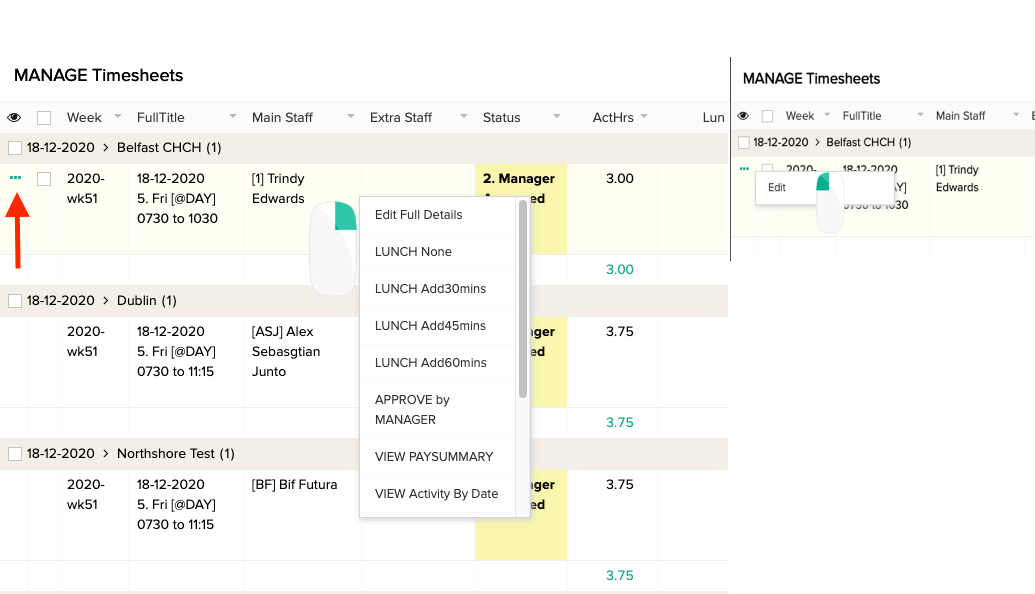
- In Manage/Payroll timesheets you can right click and this will bring up some quick options for the person you are clicking on or by left clicking on the 3 green dots which will bring up Edit.
- Use the right click for default actions to be applied or Edit Full Details will take you inside timesheets to make any changes required.
- Left click on 3 dots and Edit will take you inside timesheet to make changes.
2: ONSITE MENU/MY DOCKETS
Depending on how your company has been set up, the screen may look slightly different.
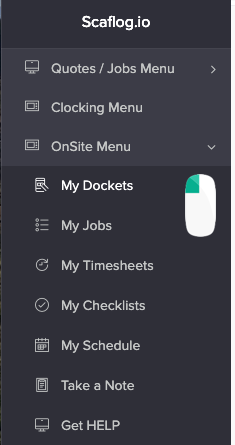
Left Click On My Dockets
Click on the small arrow as indicated. NOTE: The line to the left of this arrow is green to indicate timesheets have been entered for this particular activity. If this is red, NO timesheets have been added for this activity yet.
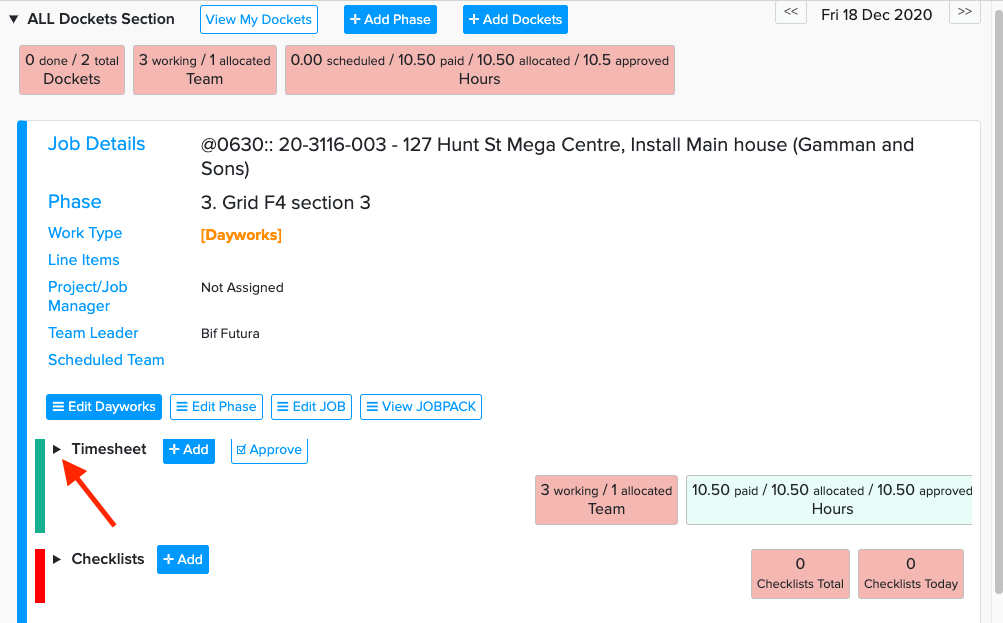
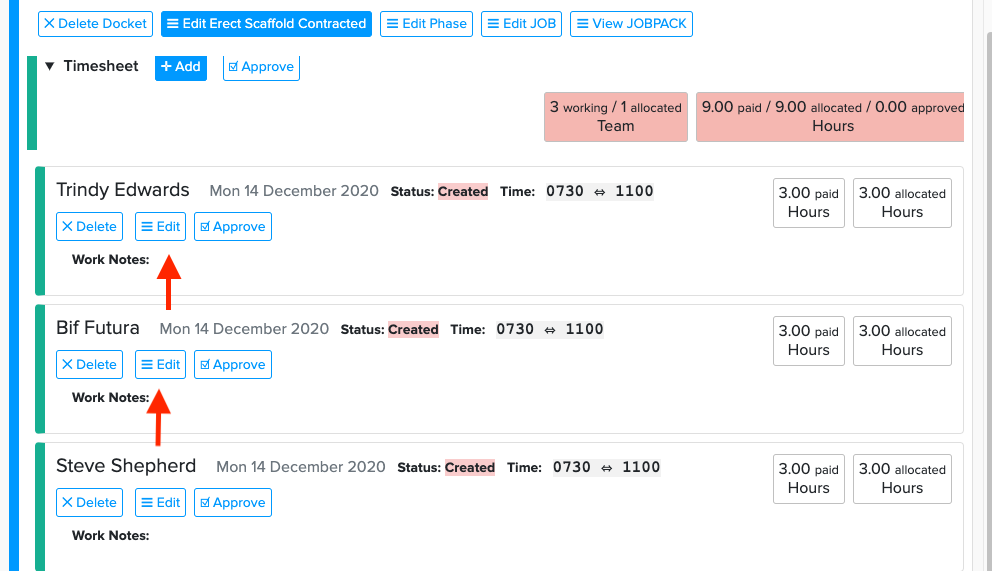
Click on edit and this will pop open another window for this persons time sheet and you can then change any details that have been entered here. Or click delete to delete the timesheet entry
NOTE: You can only edit timesheets that HAVE NOT been Manager Approved