Quotes - How to add a Scope Template
OVERVIEW: When entering a quote there will be times when your scope will be the same. Having a Scope Template can make the quoting process faster as its already typed up and you can also make minor tweaks and add/remove text if necessary.
Adding a Scope Template is an advance feature, and will display on your quotes when chosen. If you would like our support team to help setup a default scope template please contact us via email, otherwise follow the steps below.
IMPORTANT NOTE: Always check your quote preview after saving and using a Scope Template to ensure it looks exactly how you want it on your quote.
You can add a scope template when entering a quote by clicking EDIT Scope/Terms
 Click in the dropdown box next to Quoting Scope Template and click + Add New
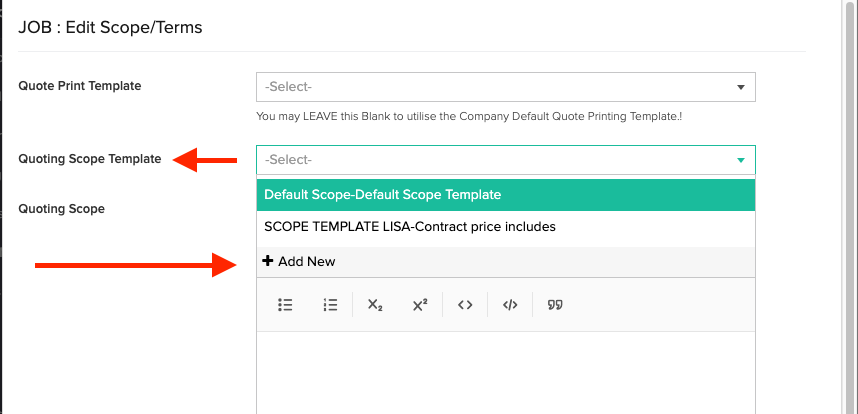
This will pop up a window to create a new scope template. This will be saved in the Special Conditions Menu.
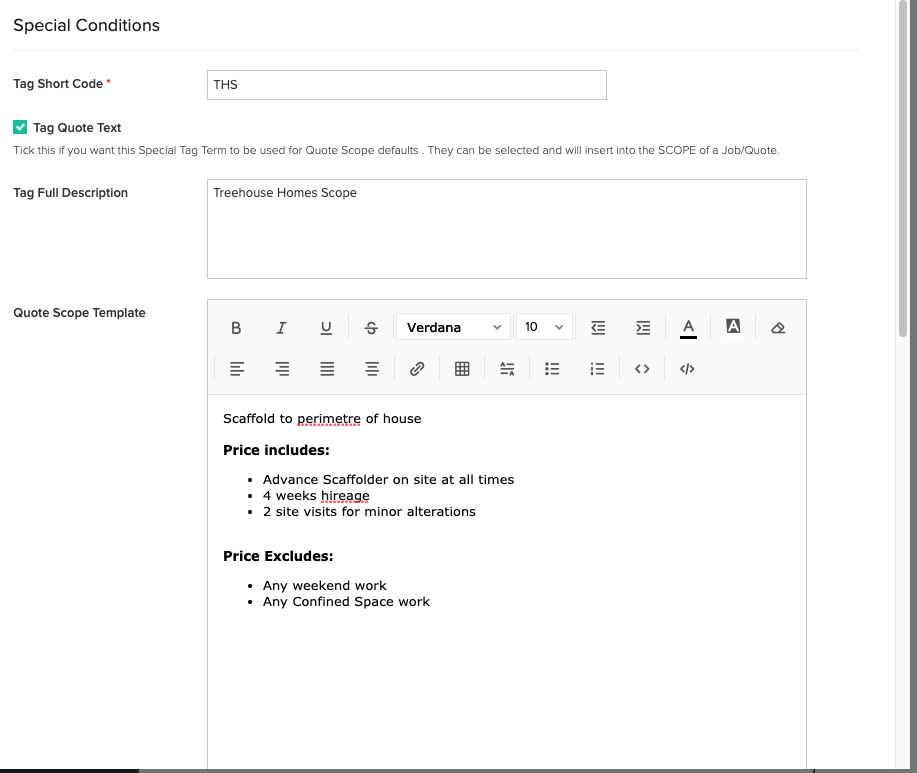
Add your ShortCode and short description in the Tag Full Description box (This is how you will recognise this template from any others you may set up). Tick Tag Quote Text and this will open the full screen to enable you to add all the scope you require. You will have the ability to format your text.
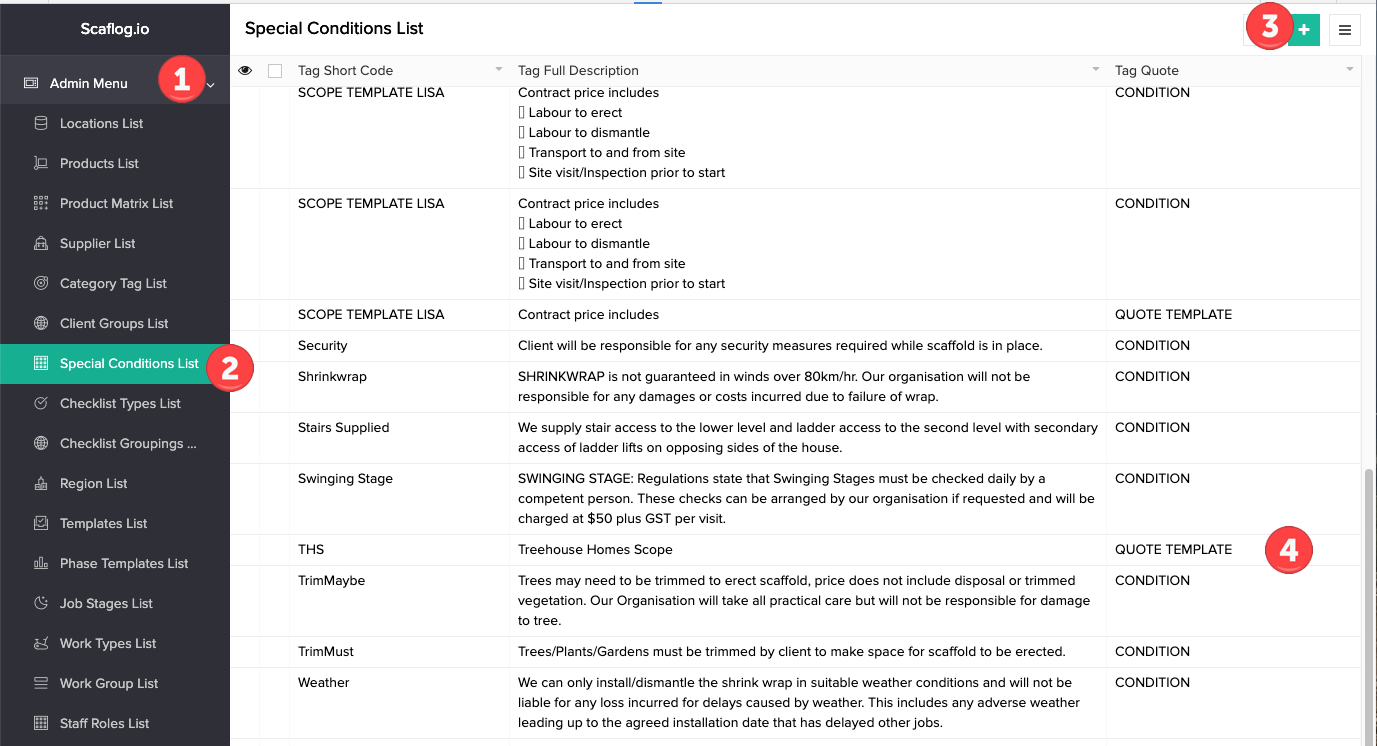
You can also add a Scope Template from:
1: Admin Menu
2: Special Conditions List
3: Green + button
4: Note Quote Template is easily identified in the Tag Quote Column