How to add a Checklist in the Field
OVERVIEW:
Adding any checklist that has been set up for your company
All checklist will be attached to the relevant job so you can review and forward to clients if necessary
Leading hands: Can do this through the Onsite Menu in "My dockets" for the specific job they are working on
1. + Add

2. Choose checklist you are wanting to add

3. Fill in all details
4. Remember to submit
Office Admin: Can go through the checklist menu
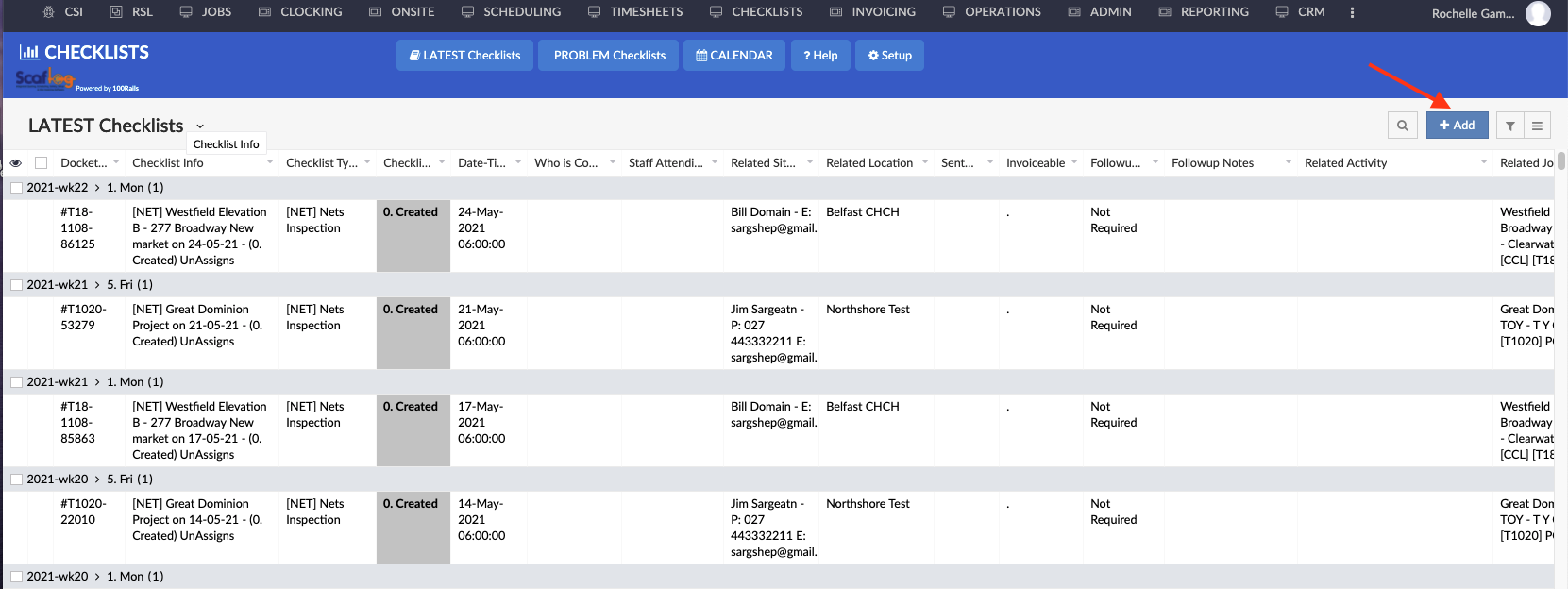
1. Go to Checklist Screen
2. + Add, A drop down box will appear, choose the checklist you wish to submit

3. Choose the Checklist you want to fill in
4. Answer all questions to the chosen checklist
5. Remember to Submit
Adding a checklist via the APP
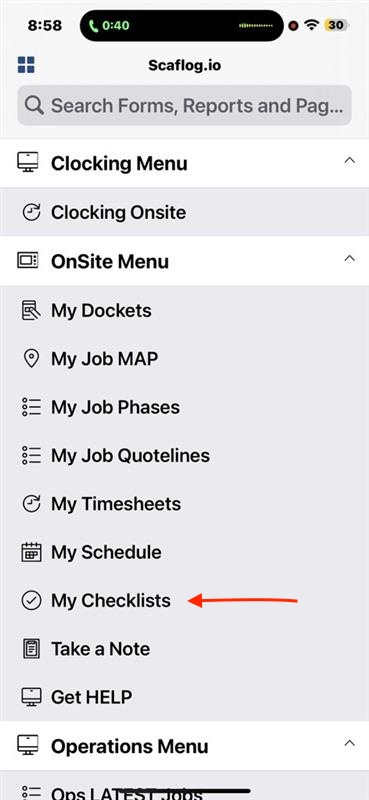
You will need to have Onsite Menu
- Tap My Checklists
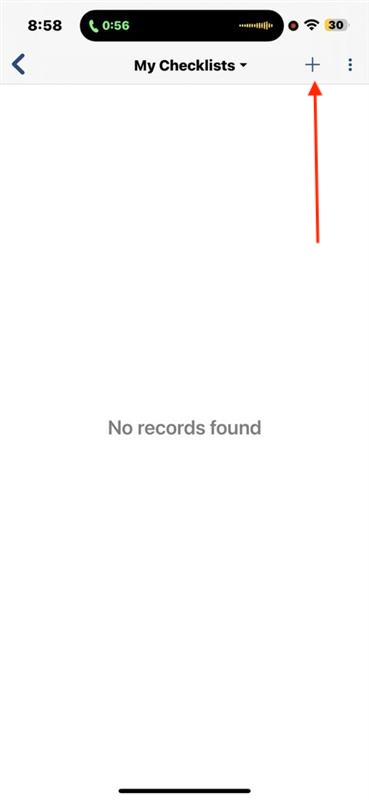
- Click + at the top of the screen
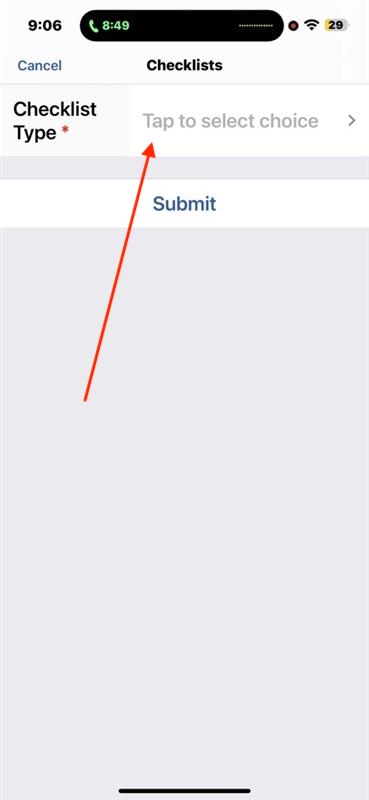
- Choose the Checklist type
- Start your checklists and submit