*SCHEDULING: How to Schedule an Activity
OVERVIEW:
When you are ready to add a calendar activity (for example like an ERECT or a DISMANTLE or CONTRACT WORK or a VARIATION etc etc) you can simply click on the day of the week to schedule.
Go to the required date on the calendar (left click) or use the + button to beginning adding a work activity.
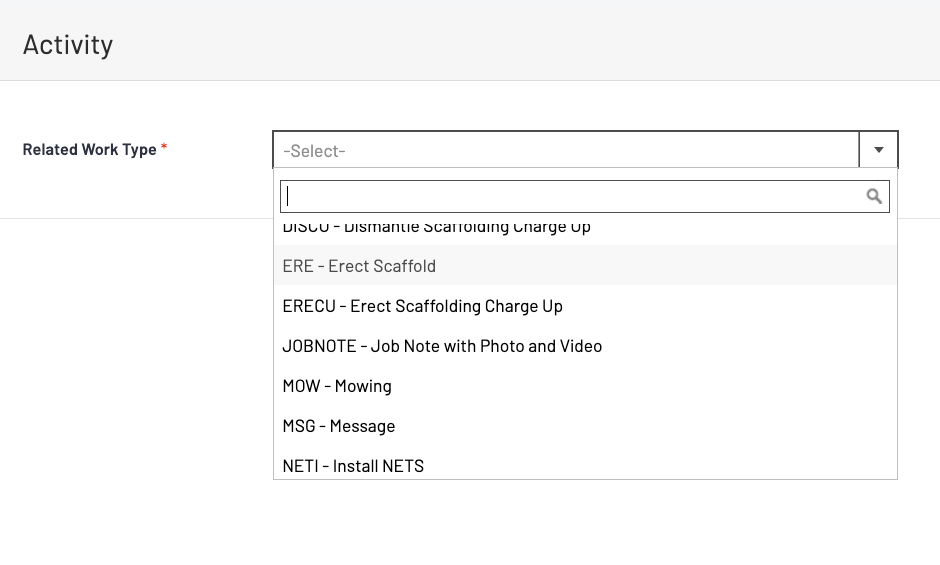
Choose the Activity required from the drop down options on the related work type.
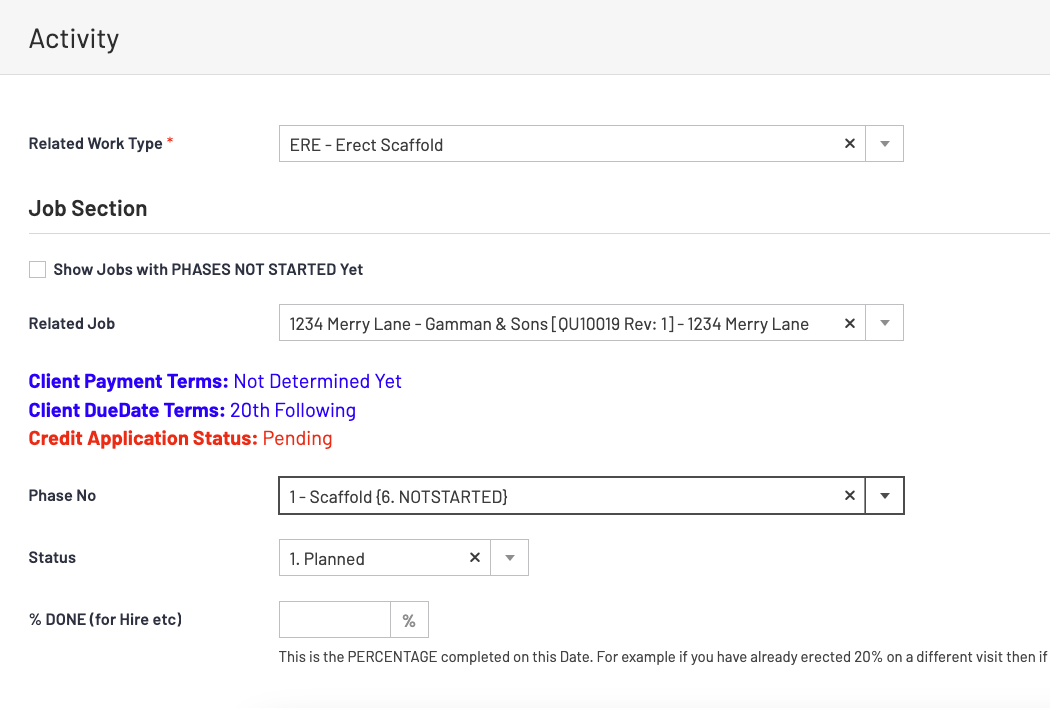
Fill in related job, which then will show all phases in drop boxes attached to this job.
Choose the phase you want to schedule work for.
Leave the STATUS as planned as this is future planned work.
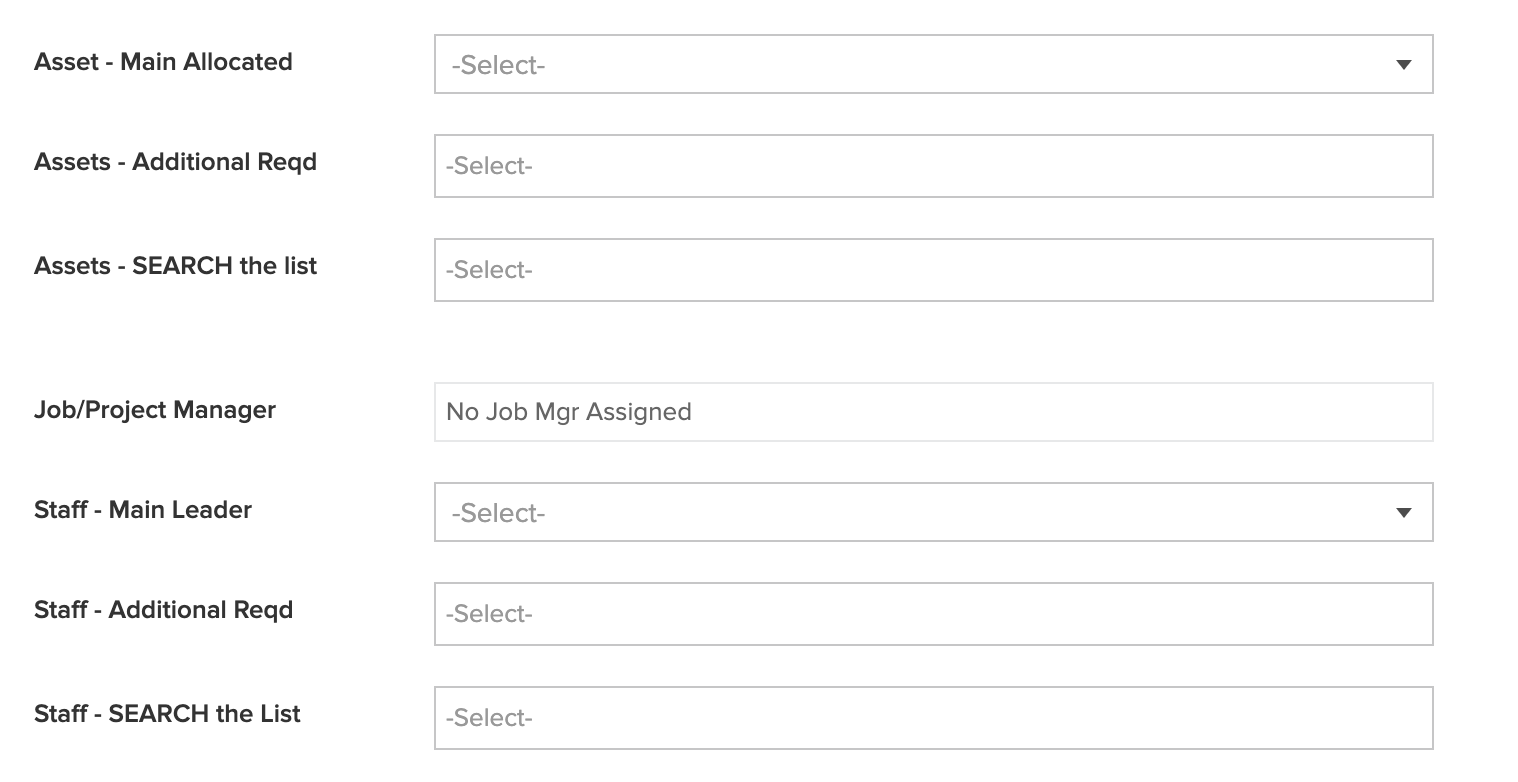
Add any assets and staff required if known ( you can always came back and add/edit this)
Start Date and End Date are the dates of the ACTIVITY not the job duration
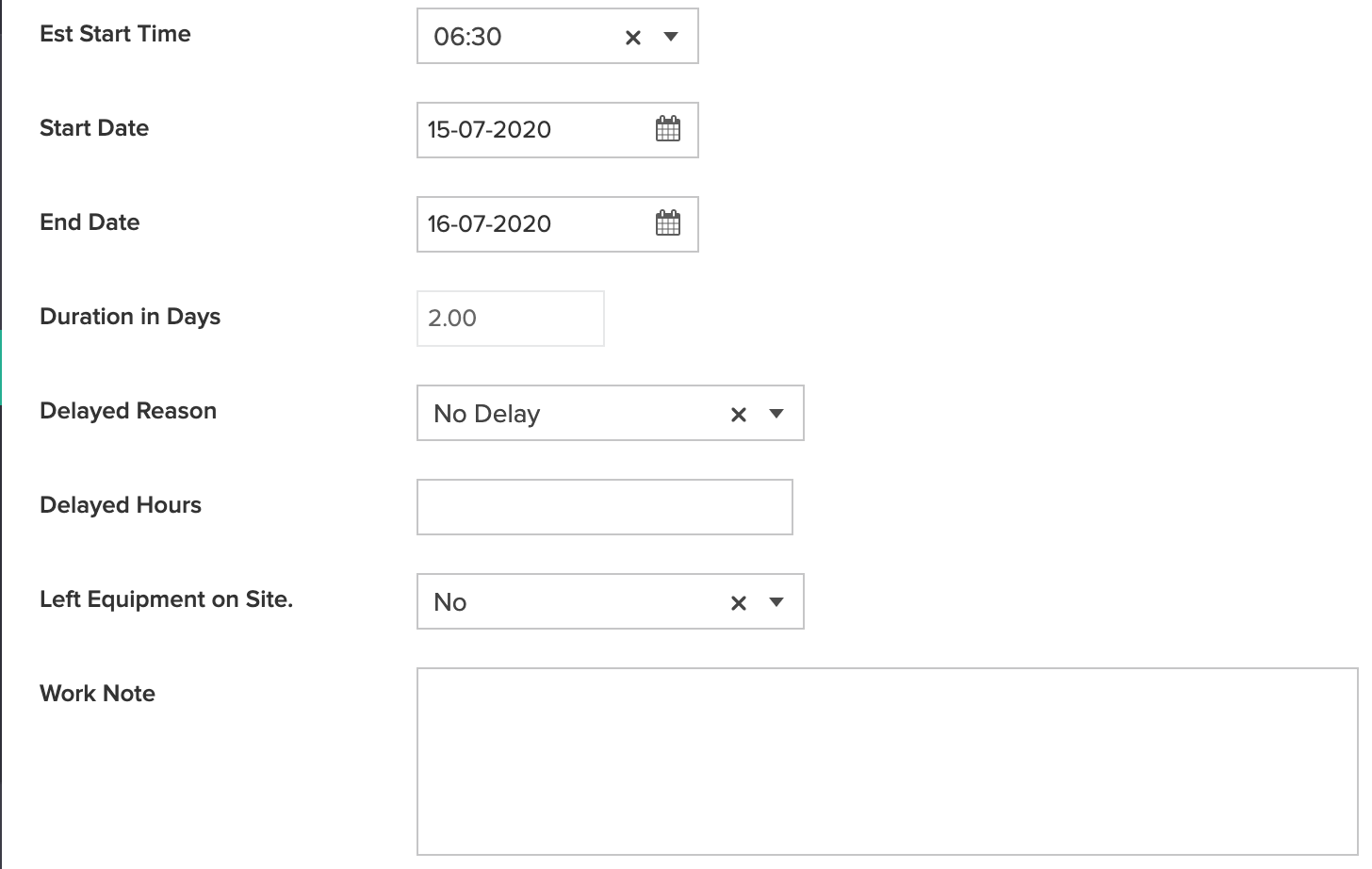
Work Note: This is for your staff's eyes only, clients will not see this.
Dragging and Dropping Activities
Once you have added activities to your calendar (or other staff have) you can then easily change the length of time or the day they occur on by using the LEFT CLICK & HOLD on your mouse to move to another day OR by hovering over the edges of the activity you can lengthen the number of days it occurs on.
Deleting an Activity: Right click on the Activity required and scroll down to Delete.
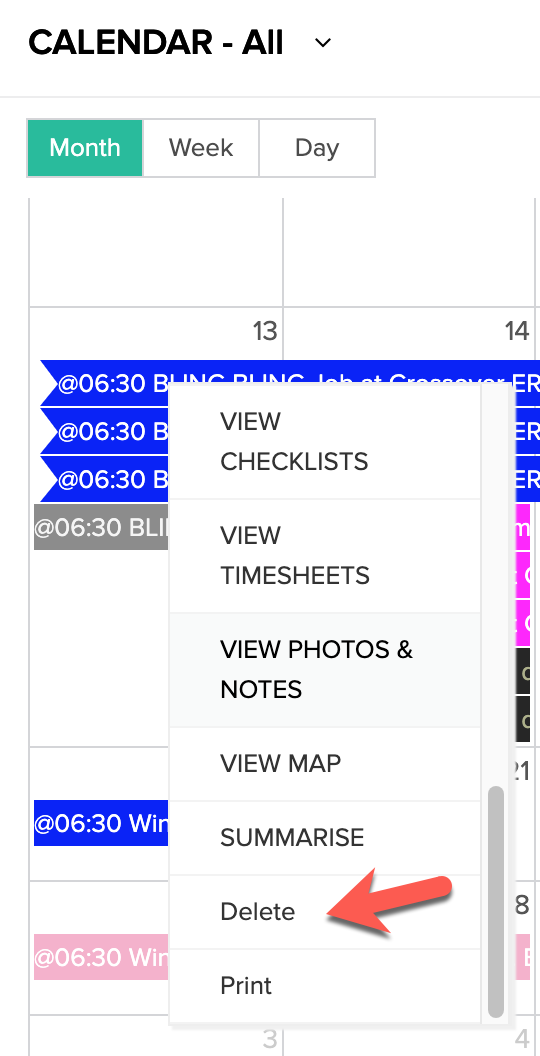
NOTE: If your deleted activity has hireage attached to it, the system activates the hireage so the hireage will appear up in your pre invoicing, this needs to be deleted out in the pre invoicing screen.