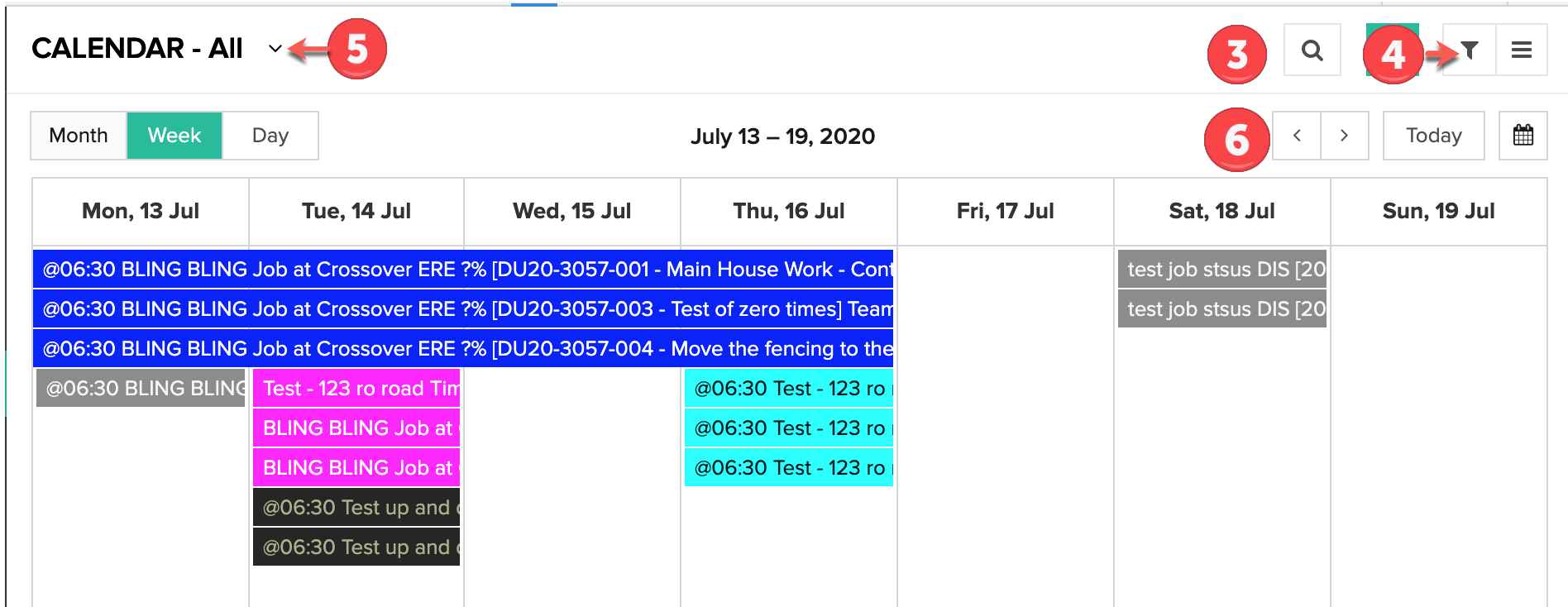
*SCHEDULING: Menu Screen Orientation
OVERVIEW:
The central module of the software includes a Team scheduling tool for allocating staff and assets (ie vehicles) to various types of work on a combination of Job and Phase.
Below are some key steps for navigating around the calendar.
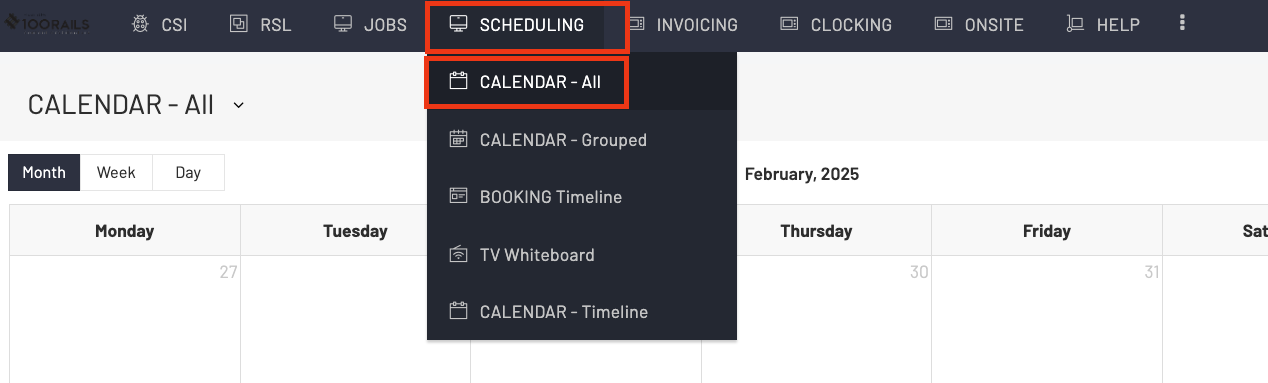
STEP 1: To access the calendar you select the SCHEDULING and then CALENDAR All button from the top black menu bar
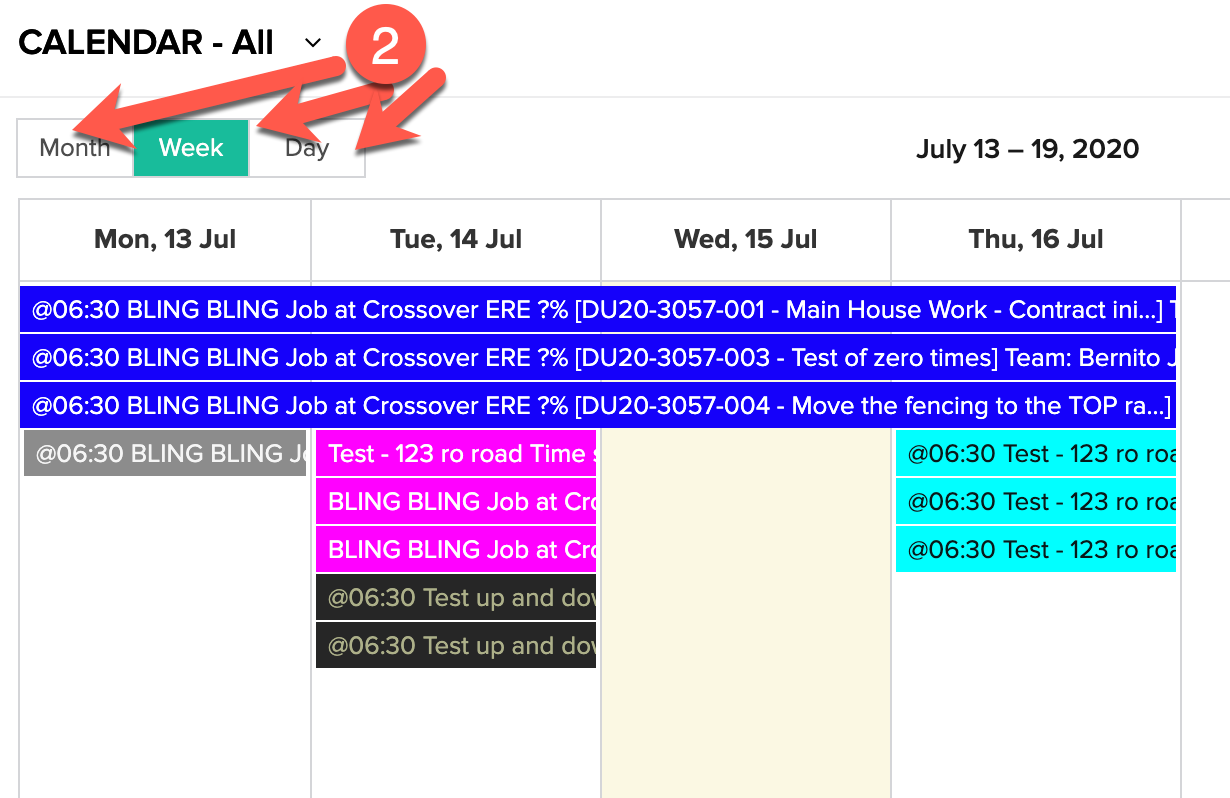
STEP 2: The schedule will display in MONTH view mode as a default but you can change to WEEK or DAY views for more or less information.
STEP 3: Filter the Calendar
If you want to filter the activities on the calendar you can do so by clicking the magnifying glass on the right side of the calendar. Also you can use the quick filters in positions 4 and 5.
Position 4 has quick filter options you can select
Position 5 allows you to select custom filters that apply to the whole calendar.
Position 6 allows you to change the month ,week, or day to previous or future dates.