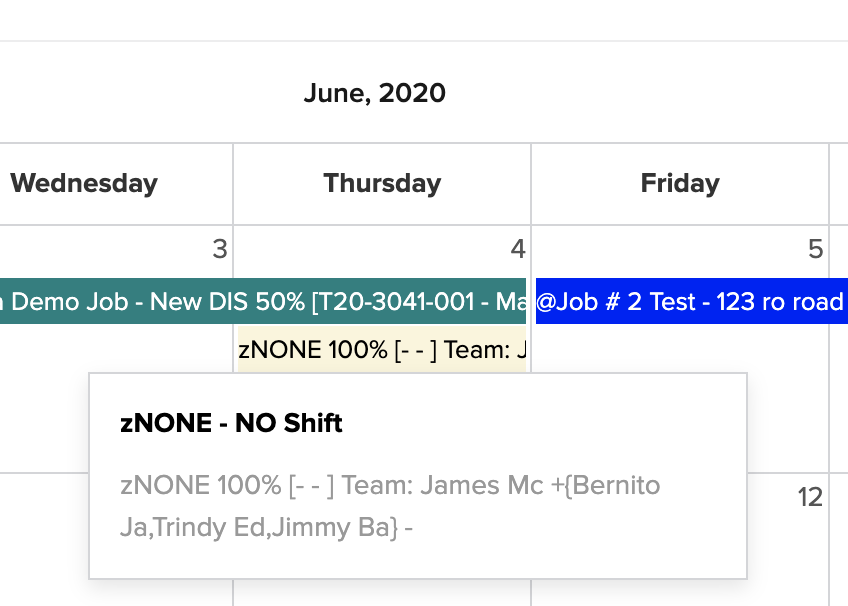
*SCHEDULE: Publishing Schedule Notifications for Staff and Clients
OVERVIEW:
This is a GREAT feature for letting staff or clients know about the work they are supposed to be working on.
The feature allows you to select activities for a day and send Email or Text notifications to your Staff.
PREREQUISITES:
- Request: The Support team need to request this to our SMS service, so please advise support@100rails.com as soon as possible and we will action and advise you when you can use this feature.
- Txt Msgs: To ensure the text messaging works well you need to check that the Work Mobile Phones have a valid mobile number for each staff member in the HR MENU -> Staff List
- Email Msgs: To ensure the email messaging works you need to check that each staff member has a reliable email address.
- Scheduling: Before you can SEND any notifications you must schedule the different type of work that you will do on any given date. For example Contract work or Erects or Installs or Dismantles etc.
ACTION STEPS :
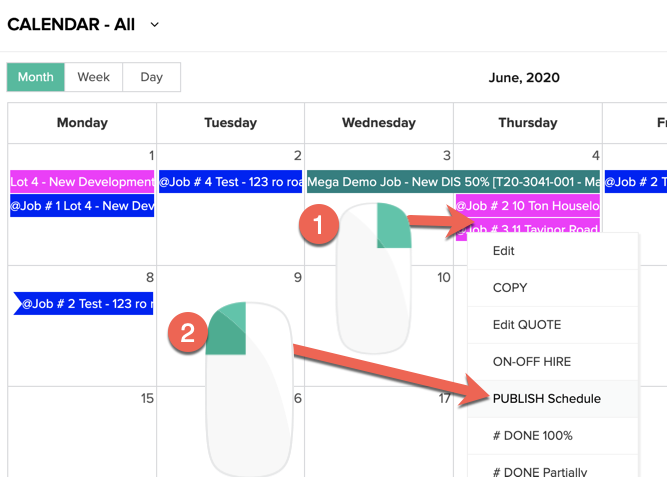
- Right Click on a calendar entry for the DATE you want to PUBLISH.
- Then left click on the PUBLISH Schedule option.
3. The system will DEFAULT to the Date you want to publish
4. The NUMBER of Staff and Activities will update as you select which Activities to include or not in point 5.
5. The system defaults to ALL THE ACTIVITIES for the day but you can click the little x in the top left and REMOVE activities that you do NOT want to send notifications too.
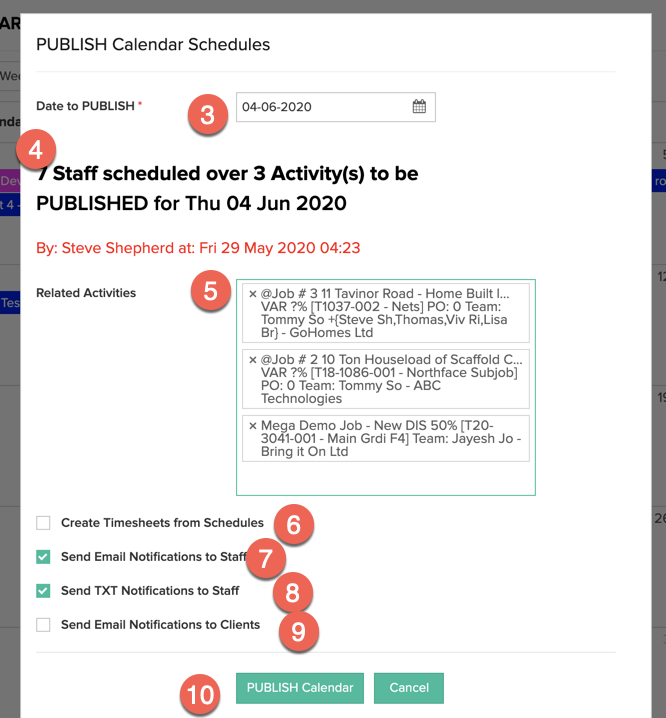
6. If you TICK the CREATE TIMESHEETS option the system will create PRO FORMA timesheets for each staff member scheduled based on the Estimated Start and End Times selected on the Activity.
7. You can SEND EMAILS to notify staff of the work schedule/shift/roster that they have for the date in question. (See the ADMIN MENU -> Templates List for help on configuring the message formats)
8. You can SEND TEXT message to notify staff of their work as well.
9. You can then send EMAILS to CLIENTS advising them that your staff will be ONSITE at the dates and times specified in the Activity schedule.
10. When you have selected the options above then you simply click PUBLISH Calendar to process the notifications.
WHERE TO SEE LAST MESSAGES:
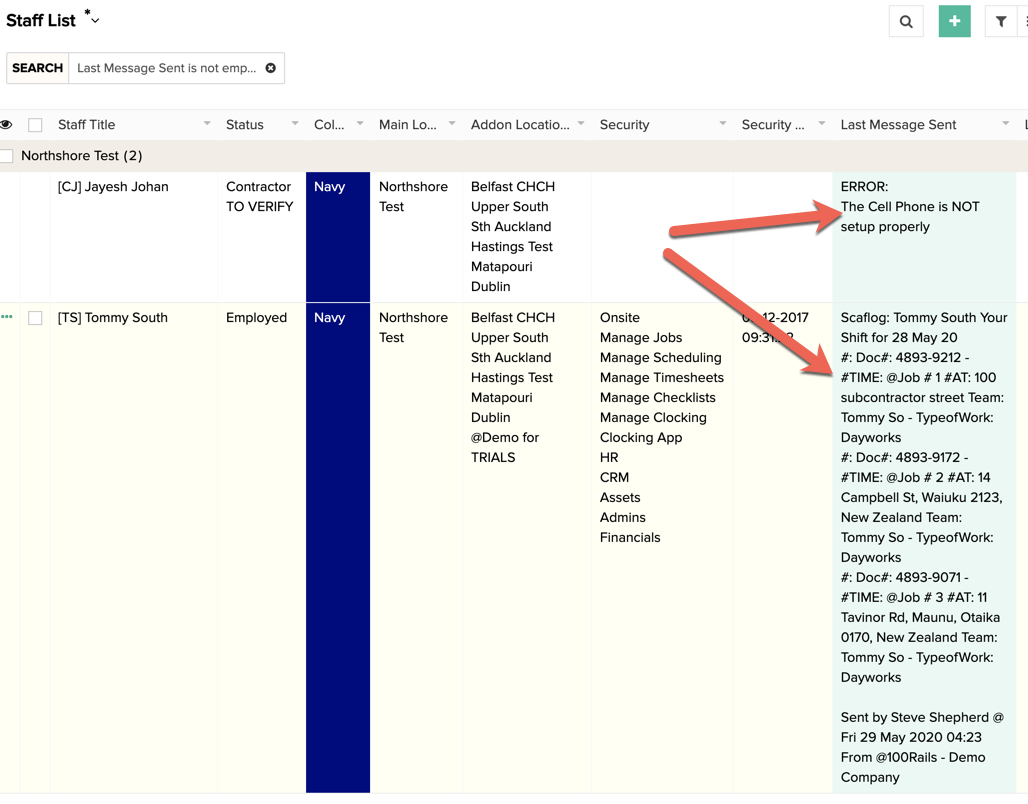
When you send notifications the system will update the "LAST MESSAGE SENT" field in the Staff List of the HR MENU. You can see what the message was and when it got sent as below.
TIPS and TRICKS:
You should setup an activity and schedule staff that are NOT WORKING to this activity. You can configure a Work type that allows you to highlight who on your team is NOT required for a certain date.