Problems Accessing Documents, Webpages, Photos, Images or Websites
OVERVIEW:
From time to time iOS devices stop allowing access to some of the data in Scaflog. Below are some steps to check if the DEVICE and operating system are the issue.
ACTION STEPS:
Step 1 – Temporarily turn off VPN
Some sites do not work when you use a VPN. So if you enabled a VPN on your iPhone or iPad, try turning it off and see if you can now access the site.
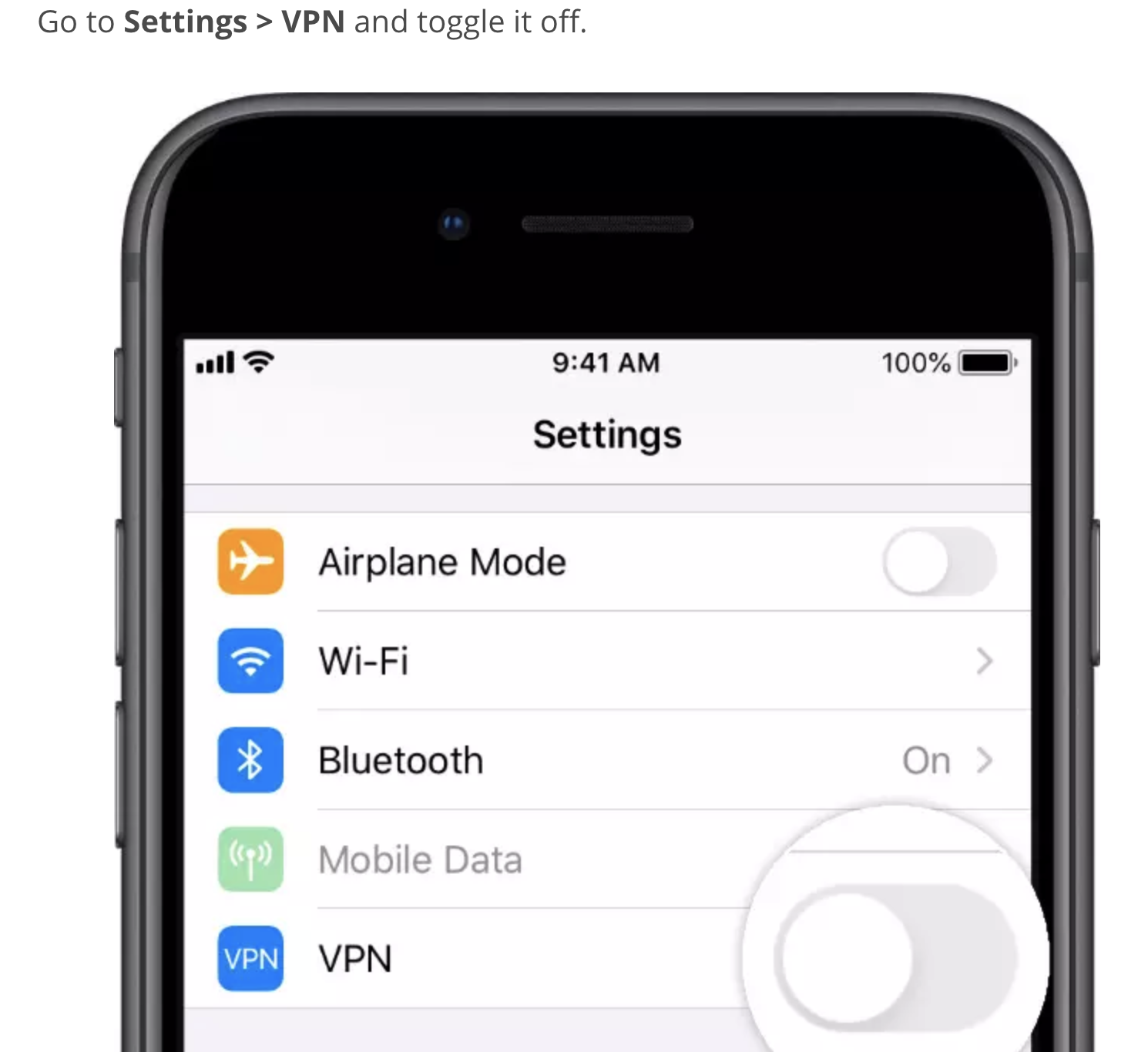
If you don’t see your VPN setting there or if it immediately toggles back on, go to Settings > General > VPN and tap the “i” button next to the name of your VPN provider. Then toggle off Connect On Demand.
Step 2 – Check Restriction Settings
Sometimes our devices have restrictions on the type of content we can view–this may be a parent or guardian limiting access or an inadvertent setting change.
For iOS 12 and above, check Settings > Screen Time > Content & Privacy Restrictions. Disable this feature by entering your screen time or restrictions passcode.
For iOS 11 and below, go to Settings > General > Restrictions. Turn off all restrictions by entering your restrictions passcode.
Step 3- Review Date and Time Settings
Another possibility is that your device’s Date & Time settings do not match online servers.
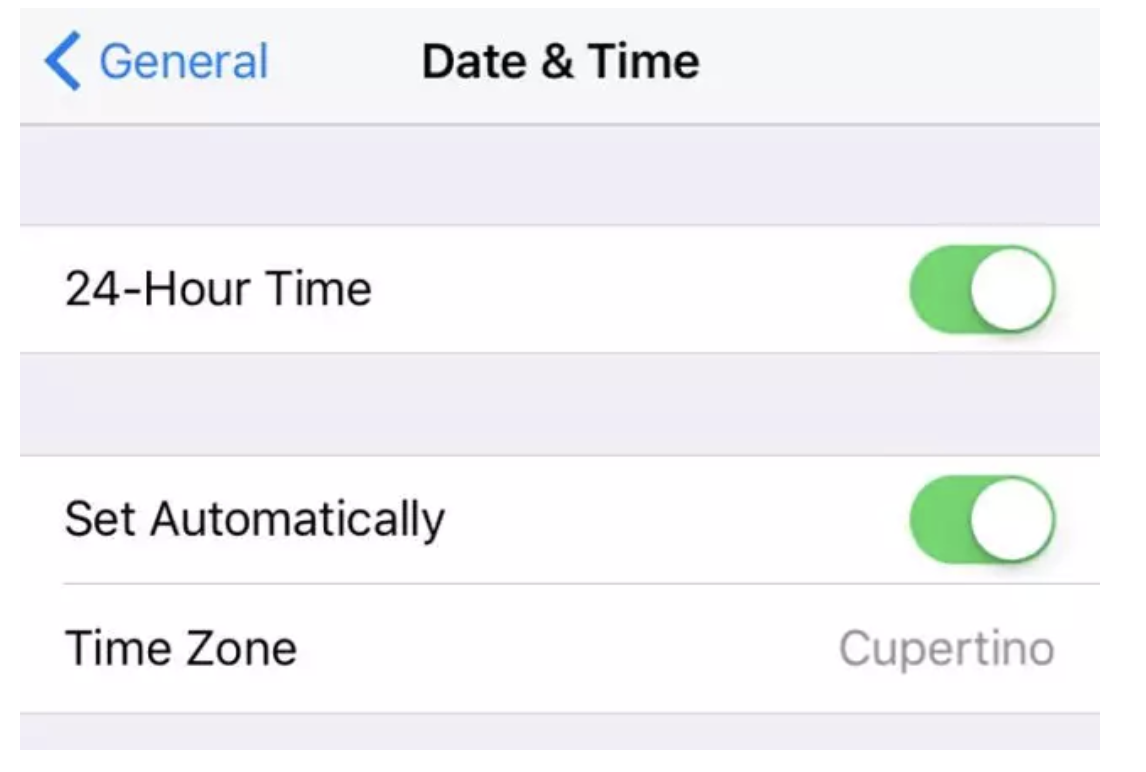
Go to Settings > General > Date & Time and verify that Set Automatically is on. If not, toggle it on. If it is on, toggle it off, wait a few seconds, and toggle it back on.
Step – 4 Restart your iPhone
This is probably the best way to resolve numerous iPhone related issues.
- Restart your iOS Device
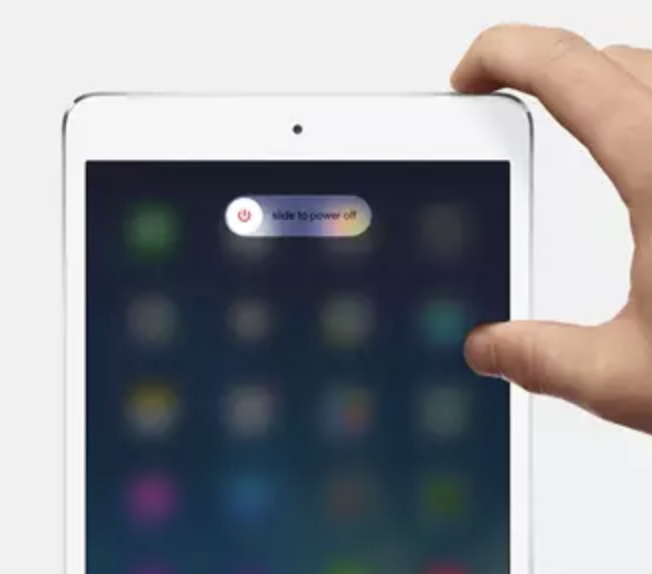
- For devices with no home button: press and hold the Side or Top button and either volume button until the slider appears
- For devices with a home button: press and hold the Top (or Side) button until the slider appears
- Drag the slider to turn your device completely off
- After your device turns off, press and hold the Side button again until you see the Apple logo
Step – 5 Clear Safari Data on Your Device
- If this problem is happening while using the Safari App on your iPhone, you can reset the Safari cache and data.
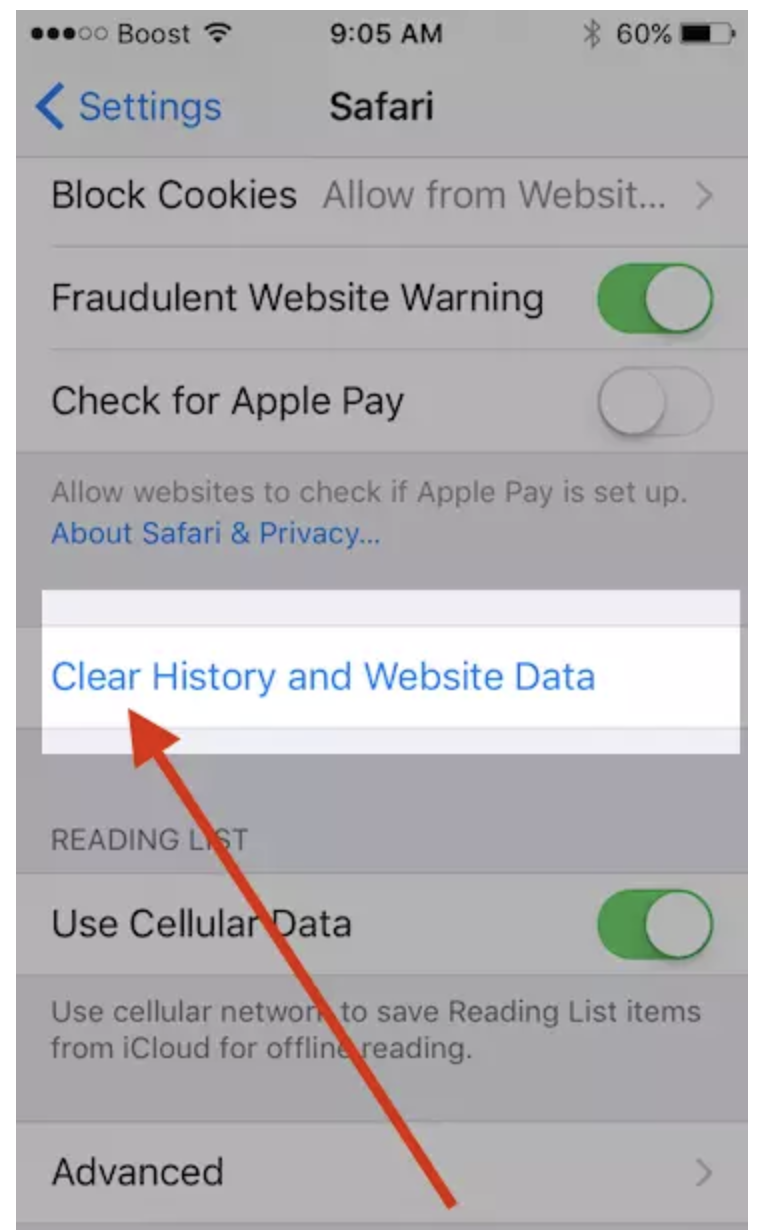
- Tap on Settings > Safari > Scroll down and choose “Clear History and Website Data”
- Confirm to clear on the next screen
- Then go back to Settings > Safari and scroll all the way down to choose Advanced.
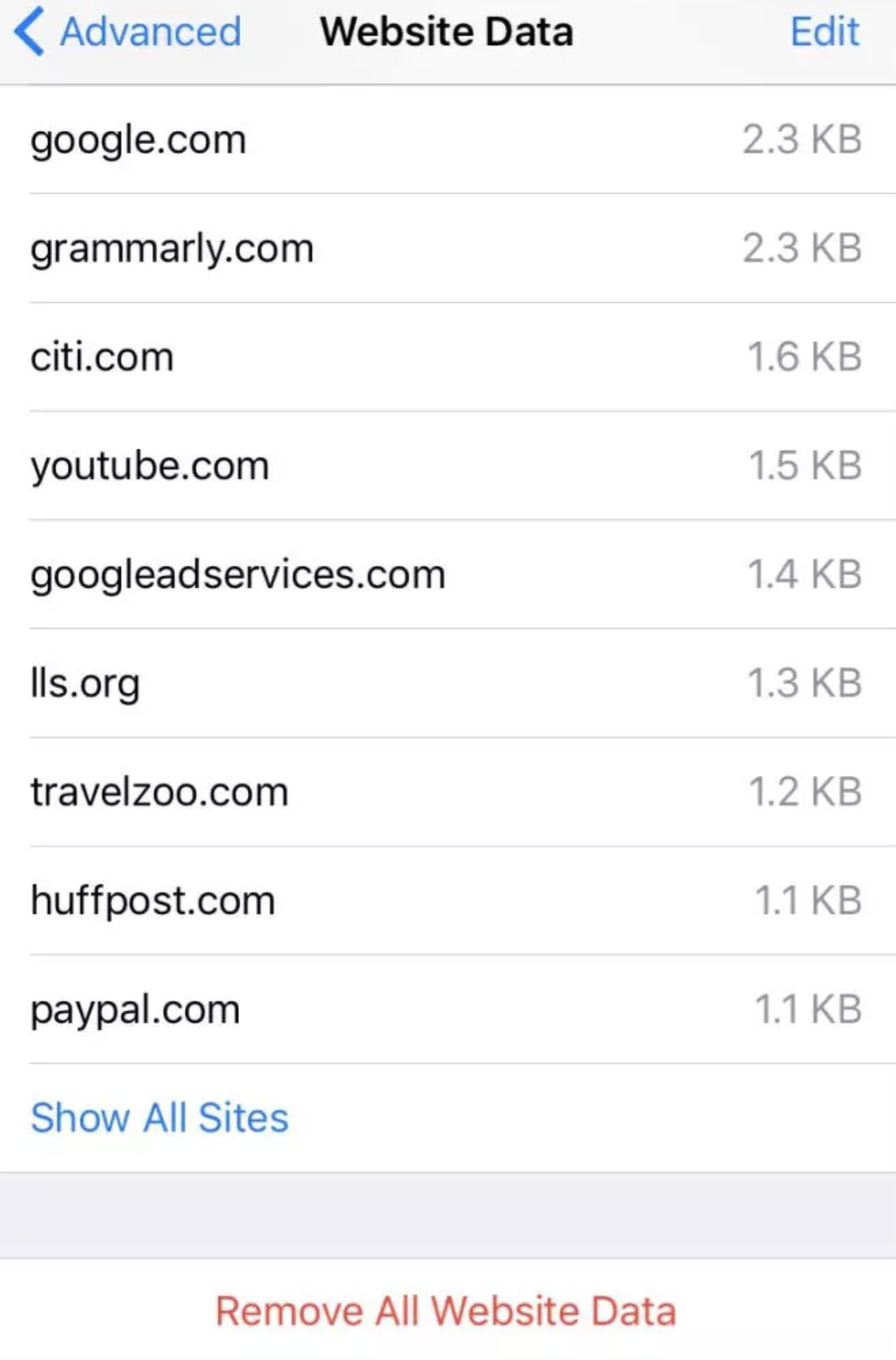
- Tap Website Data and wait for the screen to populate
- Once all app information shows up, select Remove All Website Data